If you’ve ever needed to compare two text files you’ll know it can be tedious – but what you may not know is Notepad++ can do this, and do it quite well.
If you’re not already familiar with Notepad++, it is a text editor designed for coding. This small piece of software has big features, such as allowing you to view code with colour styling and line numbers to make the code easier to read and debug.
How to compare two text files using Notepad++
These instructions have been written for Notepad++ v7.8.2.
Step 1: Install Compare plugin
- Open Notepad++
- Click on the ‘Plugins’ then ‘Plugins Admin’
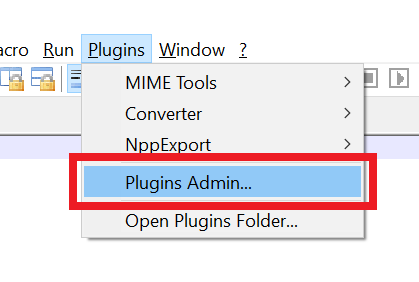
- A list of available plugins will appear
- TIP: if the list is empty you need to check your Internet connection or proxy settings.
- Either search or scroll until you see ‘Compare’
- Place a tick next to the name then click on the ‘Install’ button
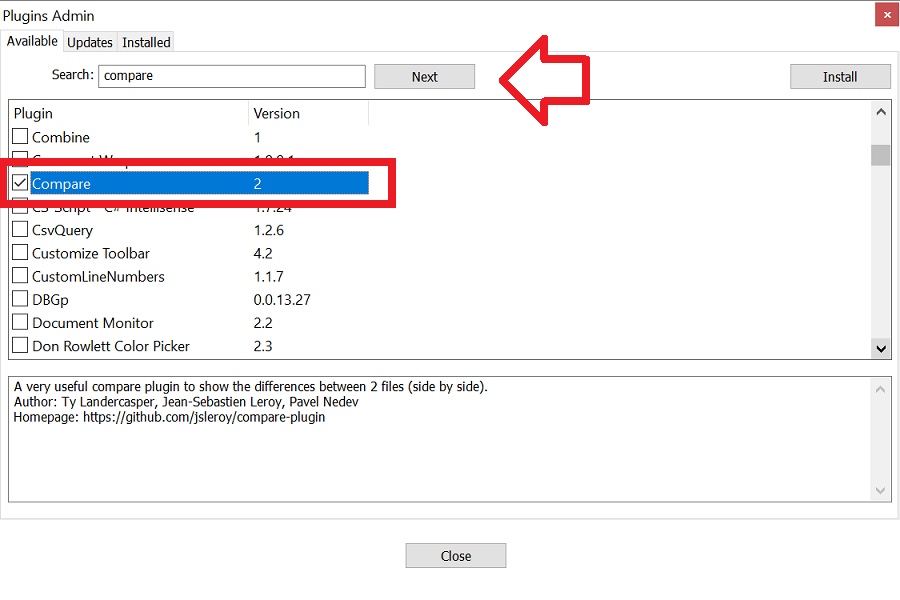
- Once the plugin is installed you will be prompted to restart Notepad++
- Click ‘Yes’ to finish the install.
Step 2: Compare two files using Notepad++ Compare plugin
- Now that the Compare plugin has been installed, open two files
- Click on the ‘Plugins’ menu then ‘Compare’ and ‘Compare’ again
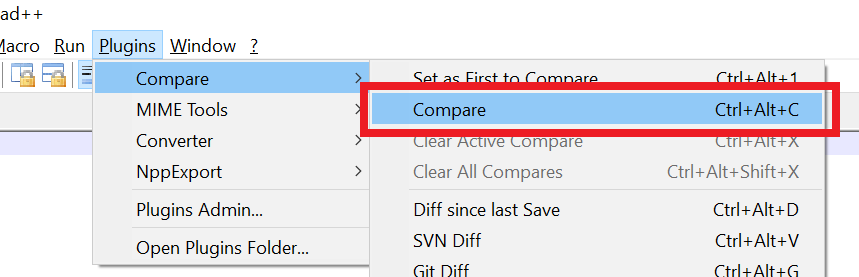
- The files will be displayed, side by side, with the differences highlighted
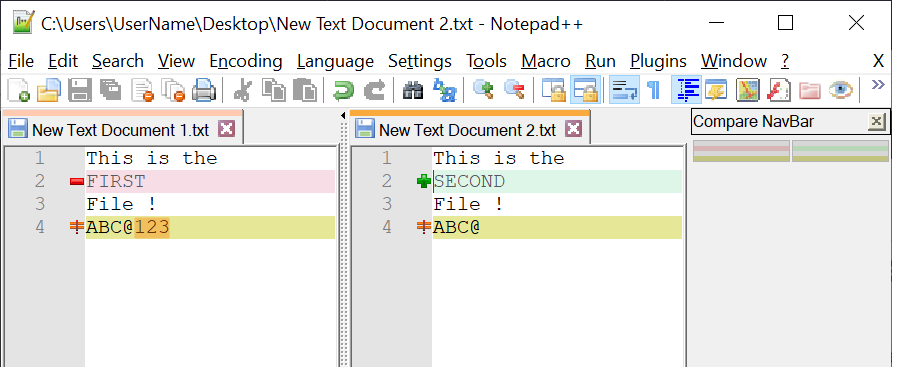
Please note: it helps to keep the ‘old’ copy of your file on the left and the ‘new’ on the right – this should help with understanding how the plugin shows the difference between files.
1.6 million lines, 8 core cpu with 32g ram, system locks up using windows 10 with this plugin
Hi Adrian,
This is GREAT! Thank You for this tutorial 😉
Tks for your post
I always was interested in this topic and still am, regards for posting.
none of these tutorials go deep enough. I have 2 complex files and im trying to decipher the weird way n++ displays the diffs. seems the -‘s are always on the left, the +’s on the right. the + means IN this file, not in the other, and the – seem to mean just the opposite. I cant seem to crack the code
Yes, you’re right – even the plugin’s page on sourceforge lacks a description of what’s going on. I use it mostly to work out the difference between two versions of the same file, and I start with the OLD copy on the left and the NEW copy on the right.