This guide shows how to remove lines that start with specific text in Notepad++ using Find and Replace with a regular expression.
Table of contents
Caution: Back up your file before using Replace All.
Find and Replace Values
This example finds lines that start with 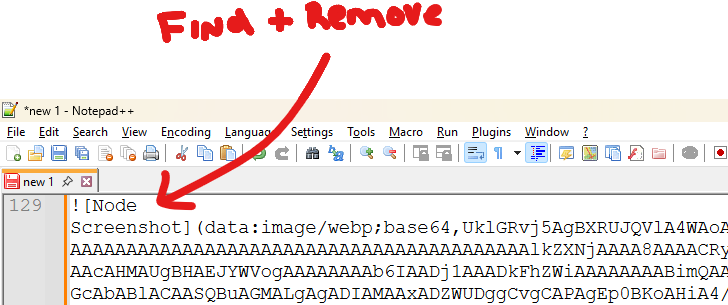
Steps
- Open your file in Notepad++.
- Open Search > Replace or press
Ctrl+H. 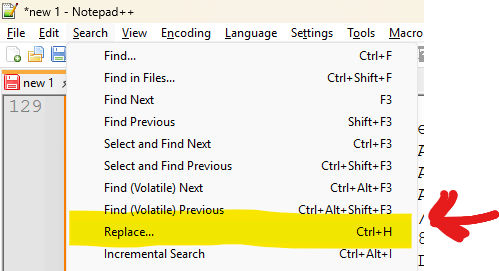
- In Find what, enter:
^!\[Node .*$\R? - Leave Replace with empty.
- At the bottom of the window, set Search Mode to Regular expression.
- Leave . matches newline unticked.
- Click Find Next once to make sure the correct line is selected.
- Click Replace to test one result, or click Replace All to remove every matching line in the file.
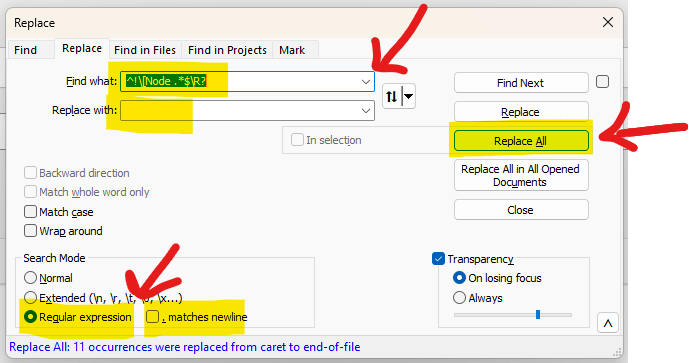
- The message at the bottom of the window will confirm how many occurrences were found and replaced.
Other examples:
Remove lines that start with "ERROR: "
- In Find what, enter:
-
^ERROR:.*$\R?
Find and replace with other text
This example replaces the text with "NEW TEXT".
- In Replace with, enter:
-
NEW TEXT
How this regular expression works:
^means the match must start at the beginning of a line.\[tells Notepad++ to treat[as normal text..*$matches the rest of that line.\R?removes the line break as well, so you do not leave an empty blank line behind.- This removes the whole line, not just the starting text.