Problem
Formatting documents in Word can be extremely frustrating.
Table of contents
Often Word completely disregards the ‘repeat header row’ setting – leaving you with a table that just doesn’t behave.
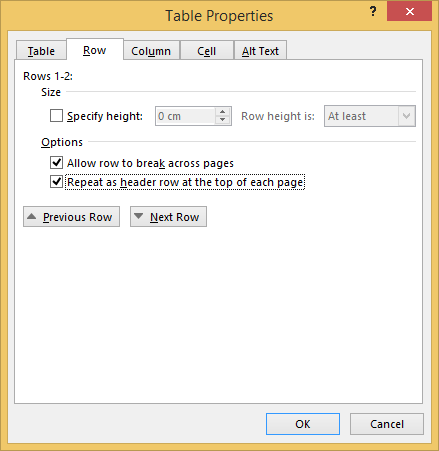
Sometimes, no matter what options are selected the ‘Repeat as header row at top of each page’ option doesn’t work as expected, if at all.
Solution
The solution is simple, and quite baffling why it works where the other option does not.
- Select the table,
- at the top of the Window, under under ‘TABLE TOOLS’ open the ‘LAYOUT’ tab,
- click on the ‘Repeat Header Rows’ button.
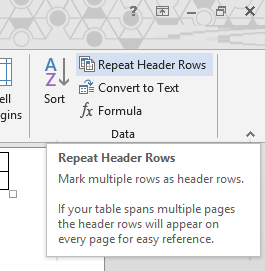
For whatever reason, where the normal option fails to work this button some how fixes the table and makes the header row repeat across pages.
Help! What if this didn’t work!
Here’s a few tips if the above didn’t help.
Method 1: Text wrapping must be set to ‘None’
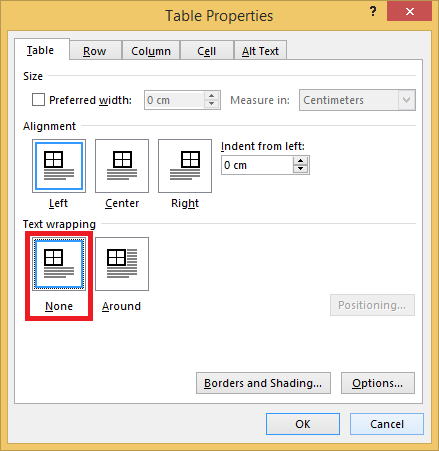
Repeatable headers DO NOT work with text wrapping enabled.
- Right click on your table and select ‘Table Properties’
- On the ‘Table’ tab set ‘Text Wrapping’ to ‘None’
Method 2: Page breaks must NOT be in table
If a page break is inside the table repeatable headers will not work.
To check for page breaks:
- Enable the display formatting option on the ‘Home’ tab, under ‘Paragraph’
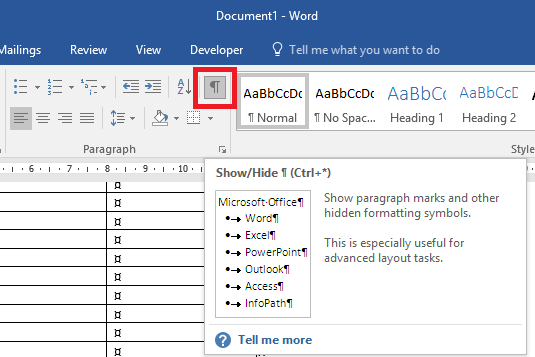
- Look through the table for a page break and delete it, if there is one it will be at the bottom of the page (hence being a page break). You may also need to delete an empty line to join your table together again.
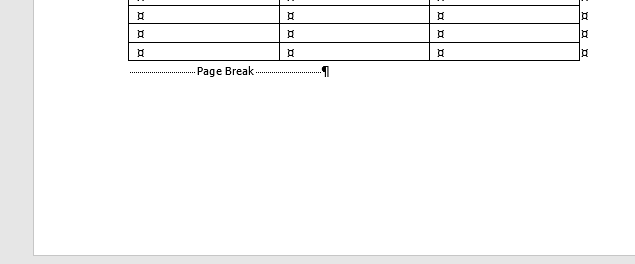
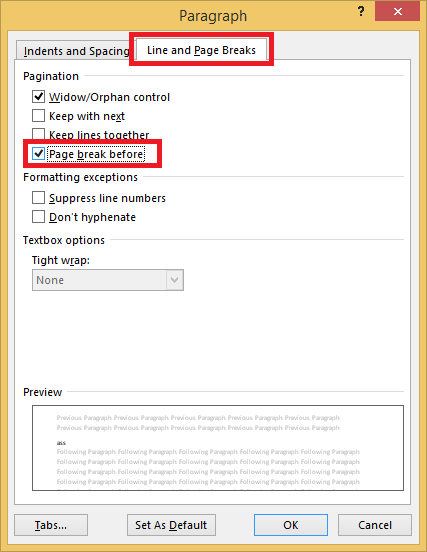
If you need the table to page break you will instead have to enable ‘Page break before’ on the table row.
- Click on the row you want to start on the new page
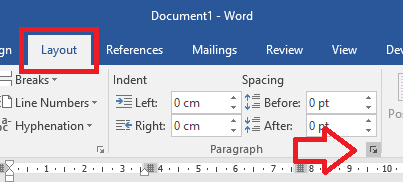
- Then on the ‘Layout’ tab open the ‘Paragraph’ settings window (click on the little arrow icon next to ‘Paragraph’)
- On the ‘Line and Page Breaks‘ tab tick ‘Page break before’ and click ‘OK’ to save the changes
Method 3: Nested tables
Repeatable header rows will not work for nested tables, that is, a table inside a table – make sure you only have one table.
Method 4: Turn it off and on again!
- Open the table properties
- Disable ‘Repeat as header row at top of each page’
- Save and close the file
- Open the file again
- Enable ‘Repeat as header row at top of each page’
Thanks Adrian! This worked for me too.
This actually worked for me. Thanks!
Sorry, useless. Doesn’t work. Any further suggestion? Thanks!
Steven – I think the instructions here were incomplete. Not sure why.
I was trying to say this helped me when the table is misbehaving:
1. Select the table,
2. at the top of the Window, under under ‘TABLE TOOLS’ open the ‘LAYOUT’ tab,
3. click on the ‘Repeat Header Rows’ button.
Failing this, if it’s a DOC format Word Document, try saving as a DOCX – the conversion process might fix things up. I’ve got so desperate with some documents that I’ve created a whole new document and started again – always an option, depending on how desperate you are.
Word 2013 – I cannot get header rows to repeat on tables. I’ve tried both the table properties and the Repeat Header Row in Table Tools. When I tell my tables to not let cells break across pages, they still do. Any thoughts?
The trick is where you are clicking/highlighting on the table when you click the ‘Repeat Header Row’ button.
It didn’t seem to work if I selected the whole table and may nor may not work if my mouse is placed somewhere randomly in the body of the table. But if the mouse is selected and flashing on the header, it always seems to work for me now.
Hope that helps.
Thanks for the response. Turns out what I have is a table within a table and header rows only work for the master table. Oh well!
seriously, that took me months of giving up, trying, giving up and then googling. can’t believe this worked. far out that’s a weird one. thanks for your post
you’re 4 months ahead than me, seriously 🙂