Problem
Formatting documents in Word can be extremely frustrating.
Table of contents
Often Word completely disregards the ‘repeat header row’ setting – leaving you with a table that just doesn’t behave.
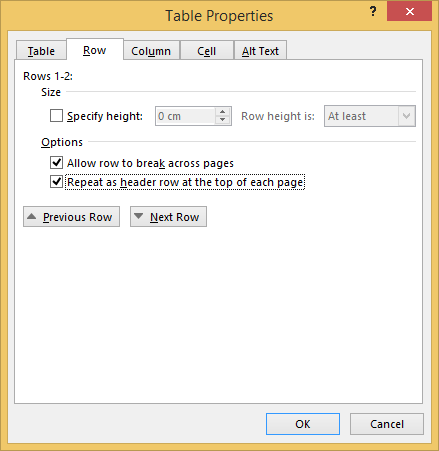
Sometimes, no matter what options are selected the ‘Repeat as header row at top of each page’ option doesn’t work as expected, if at all.
Solution
The solution is simple, and quite baffling why it works where the other option does not.
- Select the table,
- at the top of the Window, under under ‘TABLE TOOLS’ open the ‘LAYOUT’ tab,
- click on the ‘Repeat Header Rows’ button.
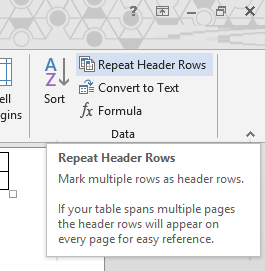
For whatever reason, where the normal option fails to work this button some how fixes the table and makes the header row repeat across pages.
Help! What if this didn’t work!
Here’s a few tips if the above didn’t help.
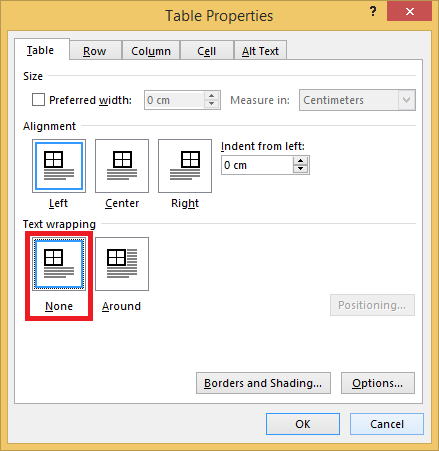
Method 1: Text wrapping must be set to ‘None’
Repeatable headers DO NOT work with text wrapping enabled.
- Right click on your table and select ‘Table Properties’
- On the ‘Table’ tab set ‘Text Wrapping’ to ‘None’
Method 2: Page breaks must NOT be in table
If a page break is inside the table repeatable headers will not work.
To check for page breaks:
- Enable the display formatting option on the ‘Home’ tab, under ‘Paragraph’
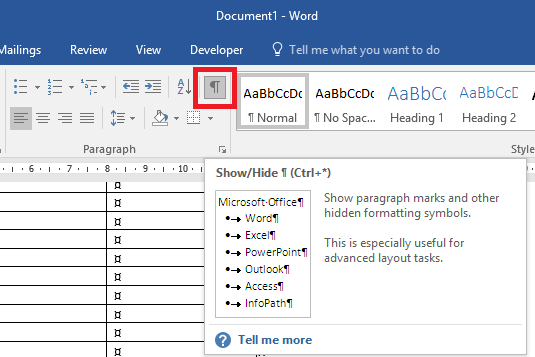
- Look through the table for a page break and delete it, if there is one it will be at the bottom of the page (hence being a page break). You may also need to delete an empty line to join your table together again.
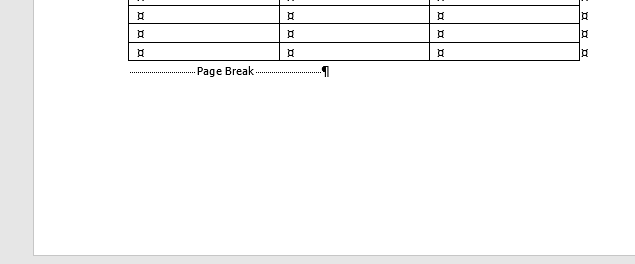
If you need the table to page break you will instead have to enable ‘Page break before’ on the table row.
- Click on the row you want to start on the new page
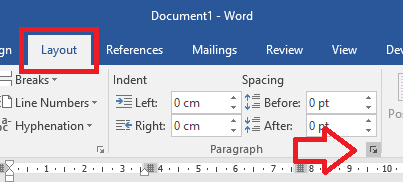
- Then on the ‘Layout’ tab open the ‘Paragraph’ settings window (click on the little arrow icon next to ‘Paragraph’)
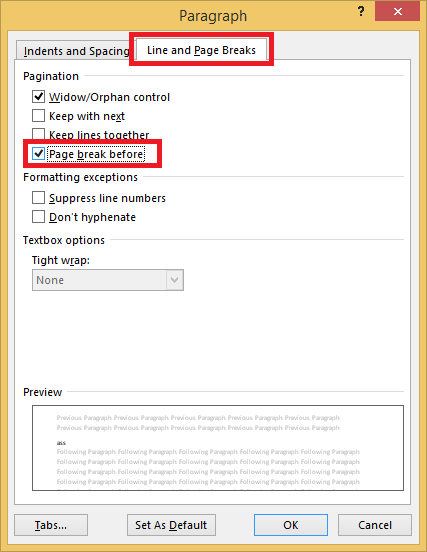
- On the ‘Line and Page Breaks‘ tab tick ‘Page break before’ and click ‘OK’ to save the changes
Method 3: Nested tables
Repeatable header rows will not work for nested tables, that is, a table inside a table – make sure you only have one table.
Method 4: Turn it off and on again!
- Open the table properties
- Disable ‘Repeat as header row at top of each page’
- Save and close the file
- Open the file again
- Enable ‘Repeat as header row at top of each page’
Thanks, it really helped. Bless you.
There is another method that I just discovered. To define a header row, you can simply place your cursor in the top row, right-click and choose table properties, go to the Row tab, and select “repeat as header row…” Unfortunately, if you do this when the ENTIRE TABLE is selected, you are inadvertently telling word that the entire table is a header row (which is what happened to me). In this case, select the entire table, go to table properties, go to the Row tab, and unselect the “repeat as header row…” check box. Then, deselect the entire table and only select the row (or rows) you wish to use as header rows then repeat the process. Now the header row(s) will repeat on each page.
THANK YOU!!!! Going to Table Properties worked.
I scrubbed the internet for the good part of an hour trying all sorts of things… this was the one!
THANK YOU!!
My Hero!!! Never ran across the “Text Wrapping” issue before today. My first row as header issue is now resolved!!!
Bless you.
Beautiful. Able to fix my table