The following steps detail how to enable logging on Windows Server 2008 Active Directory Services.
On this pageJump to a section
To configure you will need access to configure the Default Domain Controller policy and access to the event logs on a domain controller.
The process involves three steps, configuring the group policy, setting the auditing requirements and defining a filtered view to easily access the filtered logs.
In this example we’ll be logging all changes to any group inside the CitySite Organisational Unit (or below) – for example, log when a user is added or removed.
Configuring the Group Policy
- Open the Group Policy Management tool
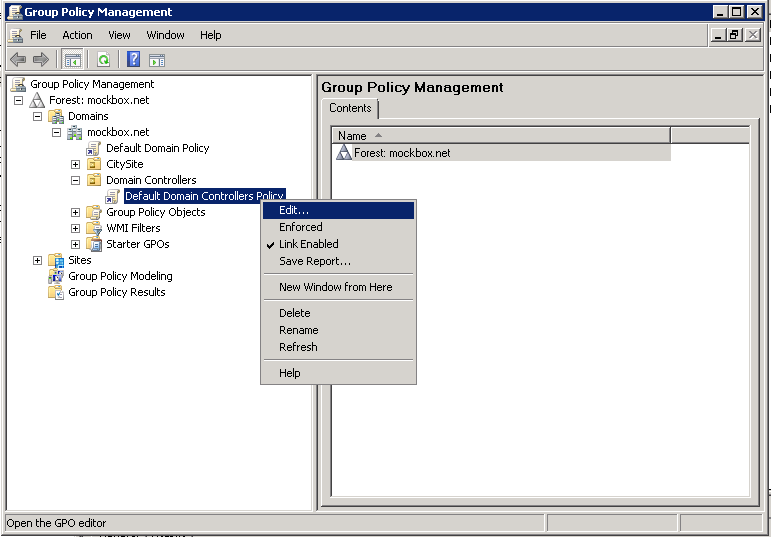
- Locate the Default Domain Controllers Policy, right click on it and select ‘Edit’
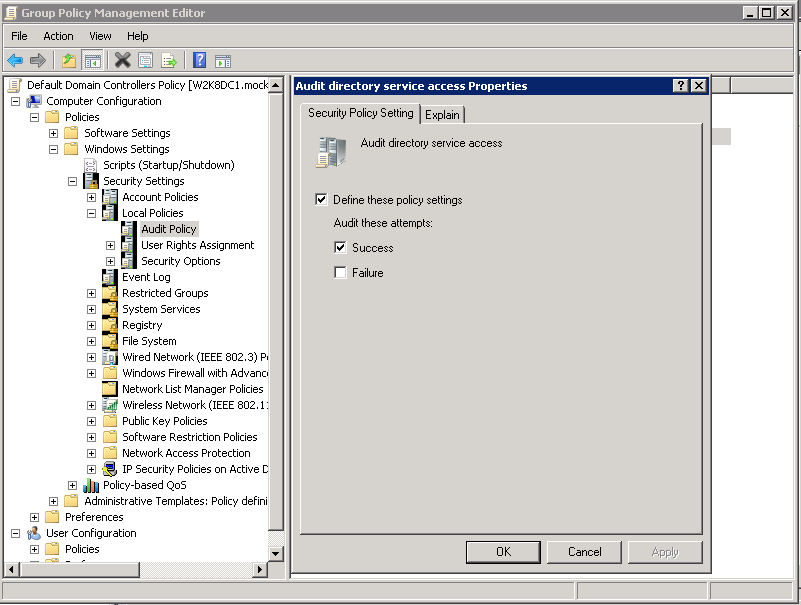
- Navigate to Computer Configuration – Policies – Windows Settings – Security Settings – Local Policies – Audit Policy
- Open ‘Audit directory service access’
- Select ‘Define these policy settings’ and ‘Success’
- Click ‘OK’ to save the changes and close the group policy management window.
Setting the auditing requirements
- Open the Active Directory Users and Computers tool
- Note, if you haven’t already enabled the advanced features you will need to. This can be done by selecting the ‘View’ menu and then ‘Advanced Features’
- Locate the Organisational Unit (OU) which contains the group objects to be logged (e.g. CitySite)
- Right click on the OU and select ‘Properties’
- Select the ‘Security’ tab and then the ‘Advanced’ button
- Select the ‘Auditing’ tab
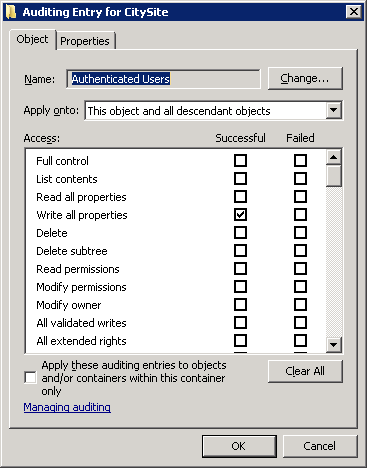
- Click on the ‘Add’ button and then enter ‘Authenticated users’ and click ‘OK’
- Under ‘Write all properties’ place a tick for ‘Successful’
- Click ‘OK’ . ‘OK’ and ‘OK’ to save the changes
Viewing the logs
- Due to the large number of logged events in Windows Server 2008 it’s much easier to create a filtered view.
- Open the Server Manager (Start Menu, right click on Computer and select ‘Manage’)
- Expand ‘Diagnostics’ and then ‘Event Viewer’
- Right click on ‘Custom Views’ and select ‘Create Custom View’
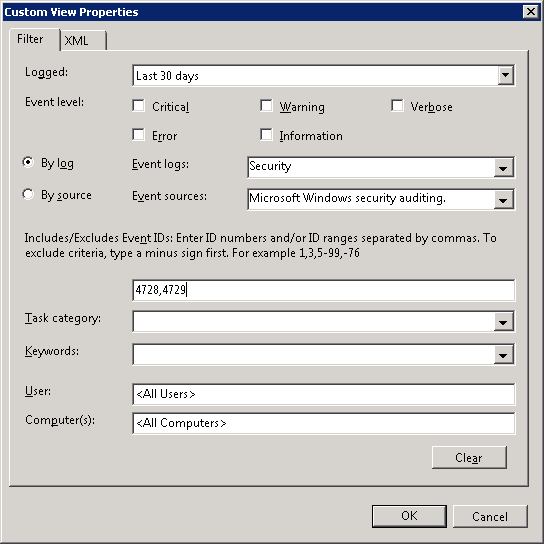
- Under ‘Logged’ select the time frame required when doing auditing (e.g. last 30 days)
- Under ‘Event logs’ select ‘Security’
- Under ‘Event sources’ select ‘Microsoft Windows security auditing’
- In the event ID field enter 4728,4729
- Click ‘OK’, give the view a name (e.g. Group changes – Last 30 days) and click ‘OK’ to save the changes
Now whenever someone with permission adds or removes a user to a group it will be logged and listed within the view.
How do I read the logs?
The log contains all the information required – what has changed, who changed it and when.
For example, the log below indicates that the user ‘bbuilder’ was removed from the ‘AllStaff’ group at 22/04/2011 by the ‘Administrator’ account:
Log Name: Security Source: Microsoft-Windows-Security-Auditing Date: 22/04/2011 9:08:37 PM Event ID: 4729 Task Category: Security Group Management Level: Information Keywords: Audit Success User: N/A Computer: W2K8DC1.mockbox.net Description: A member was removed from a security-enabled global group.Subject: Security ID: MOCKBOXAdministrator Account Name: Administrator Account Domain: MOCKBOX Logon ID: 0x3e1f2Member: Security ID: MOCKBOXbbuilder Account Name: CN=Bob Builder,OU=Users,OU=CitySite,DC=mockbox,DC=netGroup: Security ID: MOCKBOXAllStaff Group Name: AllStaff Group Domain: MOCKBOXhttp://schemas.microsoft.com/win/2004/08/events/event">