The following steps show how to use Adobe Reader to make a PDF document display like a power point presentation – full screen and automatically progressing through pages.
These instructions are written for Adobe Reader DC on Windows 10, but will be similar for other versions.
- Open the PDF document in Adobe Reader DC
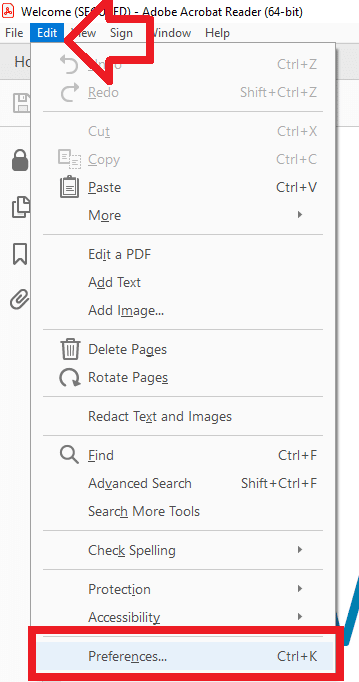
- Select the ‘Edit’ menu then ‘Preferences’
- Under the left hand menu select ‘Full Screen’
- To loop the presentation place a tick next to ‘Loop after last page’
- To progress through each page automatically place a tick next to ‘Advance every’ (and optionally set a different amount in seconds)
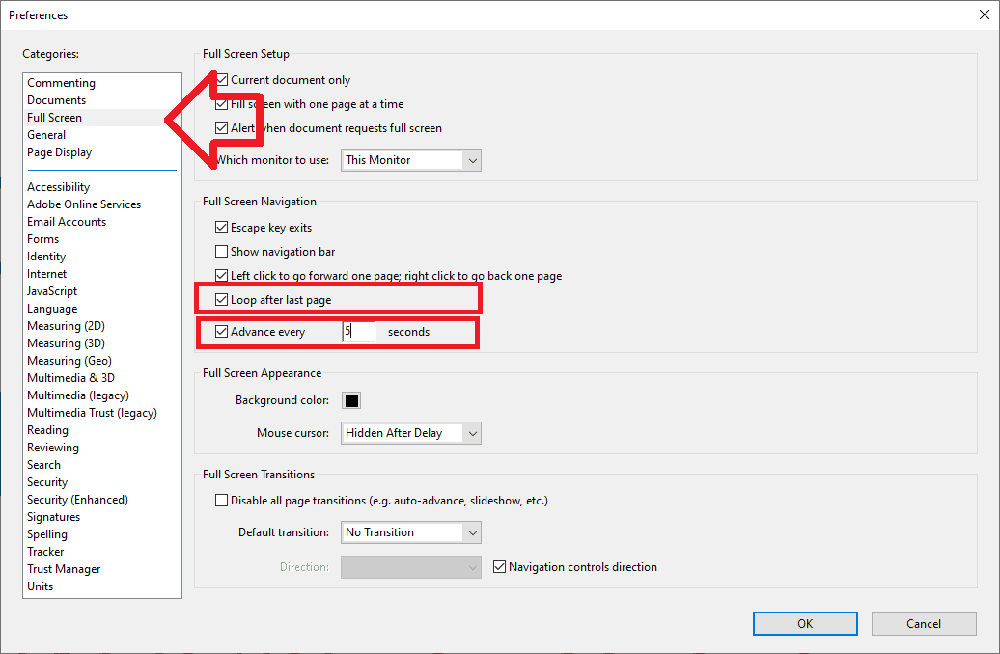
- Click ‘OK’ to save the changes
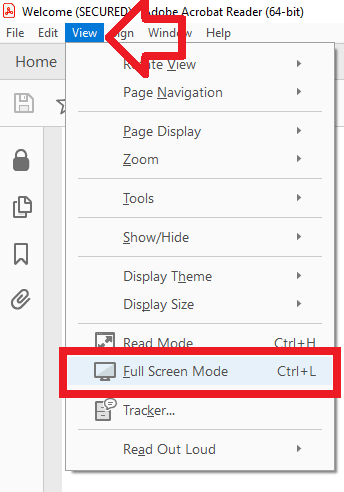
- To display the PDF as a presentation now select the ‘View’ menu and select ‘Full Screen Mode’
Thanks for this simple yet effective solution ! I was scratching my head hard until I found this page !
Thanks again
Thanks, Adrian. This guide was super helpful and hard to find on the internet. Much appreciated.
Sooo… what about a simple ‘play’ button?