The following steps show how to convert a character (for example a tab or comma) with a new line using Notepad++.
For this example we’ll be converting
The,Quick,Brown,Fox,Jumped,Over,The,Lazy,Dog
to
The
Quick
Brown
Fox
Jumped
Over
The
Lazy
Dog
- Open the file using Notepad++ (or paste the text into a new file)
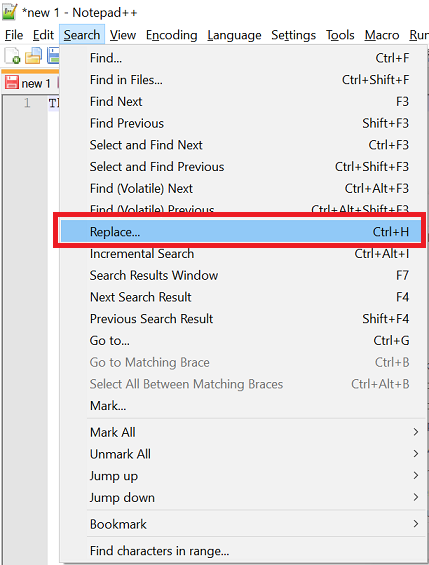
- Open the Search -> Replace menu
- In the ‘Find what’ box enter the character to convert to a new line
- In the ‘Replace with‘ box enter \n
- Under ‘Search Mode’ select ‘Extended’
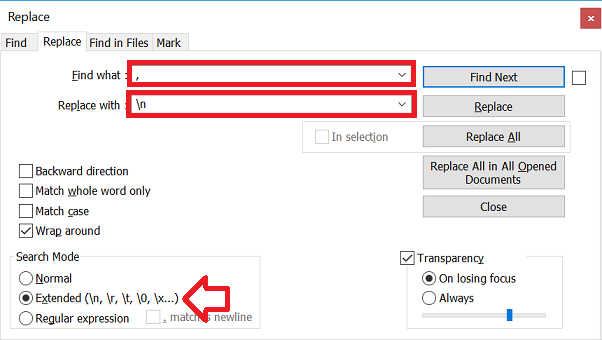
- Click ‘Replace All‘
- All the characters will now be converted to new lines.
TIP: use \t for a tab character
How can you remove new line in Notepad using Find and Replace?
Thank you
How to replace a literal “\n” with a newline?
First, replace \n with a unique set of characters using “Normal” search mode. Then run the replace again, replacing the unique set of characters with “\n” using “Extended” search mode.
Than you!
Thanks