Did you know Windows 10 keeps a record of the websites you view?
Table of contents
It doesn’t matter which browser you use, if you use “in private” or “incognito” mode, or if you clear your browser cache – it still keeps a record.
What and why does Windows keep a record of internet history?
This comes down to DNS (Domain Name System) – or more specifically the DNS cache on a Windows computer.
When you access a website, you type in the address (e.g. example.com) and Windows uses DNS to look up the network address (e.g. 93.184.216.34).
It then keeps a history of these addresses so your computer can quickly access the website again.
However, this leaves a hidden history of all the addresses your computer has accessed.
How do I view the DNS internet history?
The ipconfig /displaydns command line can be used to view the DNS (Domain Name System) cache on a Windows computer.
To use the ipconfig /displaydns command, follow these steps:
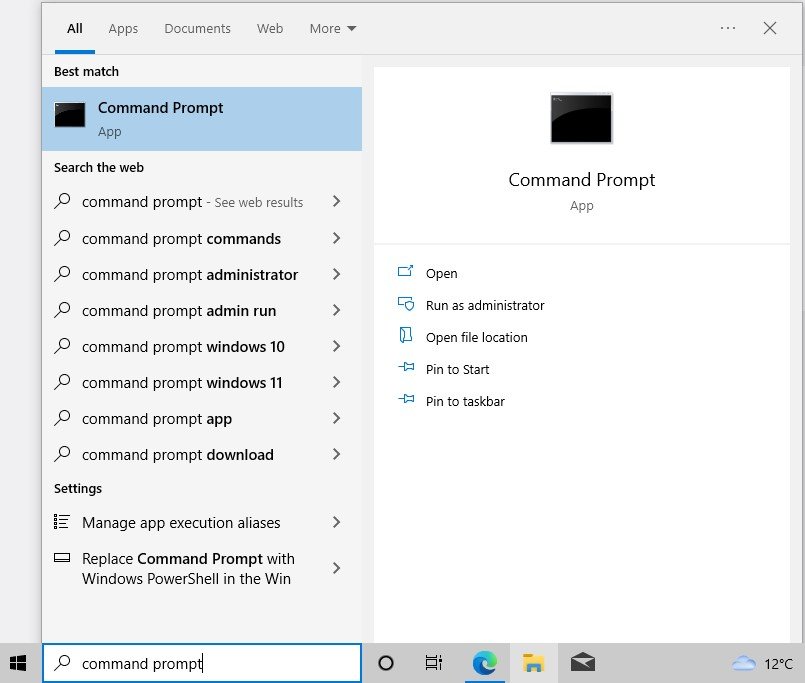
- Open the Command Prompt. To do this, type “command prompt” into the search box on the taskbar and open it when it appears appears.
- Type
-
ipconfig /displaydns
- and press Enter.
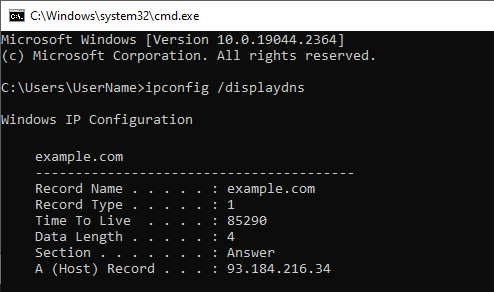
- This will display the contents of the DNS cache on your computer – which will be VERY long.
The output of the ipconfig /displaydns command will show a list of entries in the DNS cache, with each entry containing the following information:
- The domain name of the website that you have visited.
- The IP address of the website.
- The time that the DNS entry was added to the cache.
- The time that the DNS entry will expire from the cache.
You can use the information provided in the DNS cache to see a history of the websites that you have accessed.
How do I view a specific day of DNS internet history?
If you want to see all of the websites that you visited on a specific date, you can use the find command to search for entries with a specific time stamp.
For example, to see all of the websites that you visited on 16 December 2022, you could use the following command:
ipconfig /displaydns | find "16/12/2022"
This would display a list of all of the DNS entries for 16 December 2022.
How to output ipconfig /displaydns to CSV
You can also output the results of the ipconfig /displaydns command to a CSV file.
To do this, you can use the ipconfig /displaydns command in combination with the find and > commands to search for specific entries in the DNS cache and redirect the output to a CSV file.
For example, to output the DNS cache entries for the domain name “example.com” to a CSV file named “dns_cache.csv”, you could use the following command:
ipconfig /displaydns | find "example.com" > dns_cache.csv
This command would search the DNS cache for entries containing the domain name “example.com” and redirect the output to a CSV file named “dns_cache.csv”.
You could then open this file in a spreadsheet program like Microsoft Excel.
You can also use this approach to output the entire DNS cache to a CSV file.
For example:
ipconfig /displaydns > dns_cache.csv
This would output the entire contents of the DNS cache to a CSV file named “dns_cache.csv”.
How do I clear the DNS internet history?
To clear the DNS internet history, use the ipconfig /flushdns command:
- Open the Command Prompt. To do this, type “command prompt” into the search box on the taskbar and open it when it appears appears.
- Type
-
ipconfig /flushdns
- and press Enter.
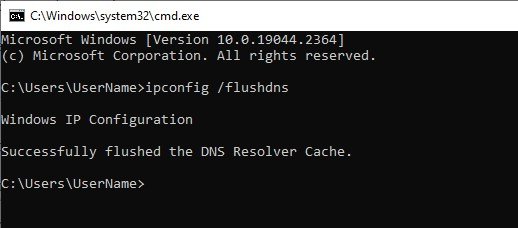
- This will clear the DNS cache on your computer, and display a “Successfully flushed the DNS Resolver Cache” message.
Incognito history check