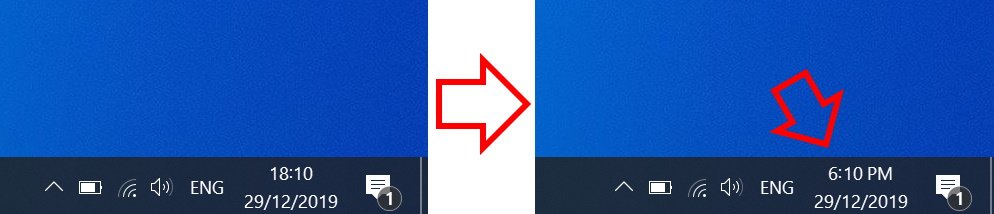
The steps below show how to change the Windows 10 clock from 24-hour to 12-hour format so that AM/PM are displayed.
How to change Windows 10 time from 24-hour to 12-hour format
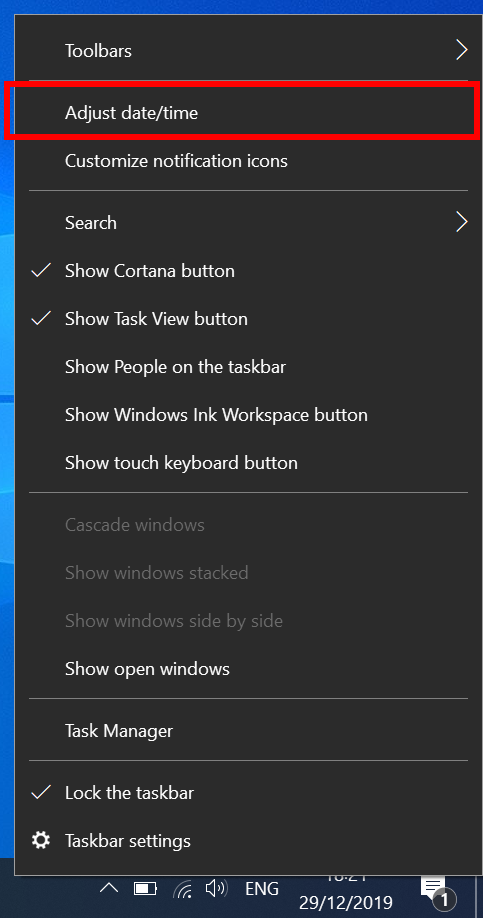
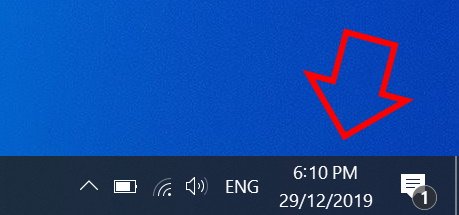
- Right-click on the clock at the bottom right of your screen then click on ‘Adjust date/time’
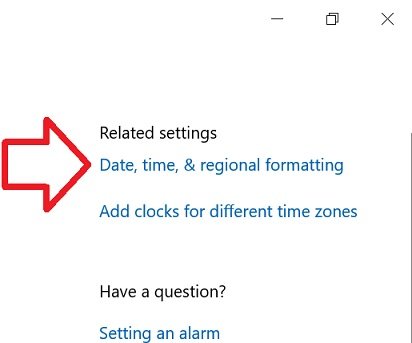
- In the right side of the window, click on ‘Date, time, & regional formatting’
- Scroll down to the bottom of ‘Regional format data’
- Click on ‘Change data formats’
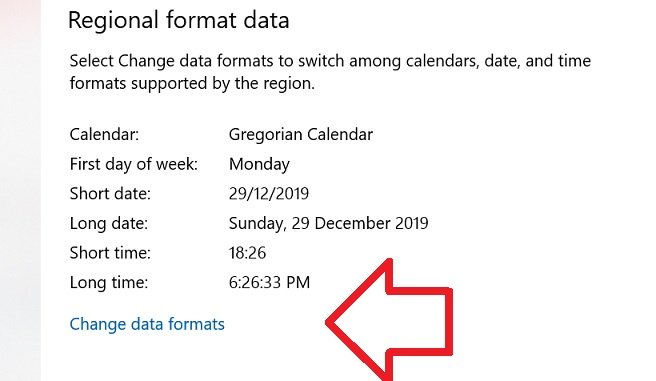
- Under ‘Short time’ select ‘9:40 AM’

- Close the window
- Your time will now be in 12-hour format and will display the AM/PM value
thank you
Very helpful. Thanks a ton.
Didn’t work for me
To easily perform clock related operations, You can use a portable application “Date & Time Tool” you can do following tasks with one click ;
1. Add – Delete Am – PM
2. Show – Hide the the day of the week
3. Hide – Show Seconds
4. Sync the Clock
5. Hide – Show Windows clock
… Etc. Link :https://www.ceofix.net/1787/date-time-tool/
Thank you
That made it look very easy!
🙂 Thanks so much1