
The steps below show how to change the Windows 10 clock to 24-hour format.
How to change Windows 10 time to 24-hour format
-
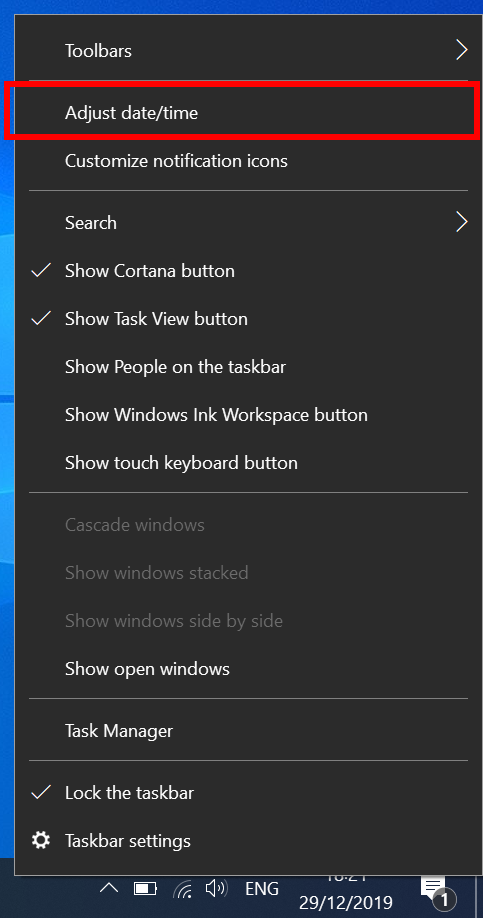
- Right-click on the clock at the bottom right of your screen then click on ‘Adjust date/time’
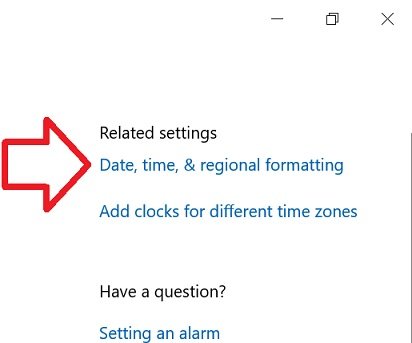
- In the right side of the window, click on ‘Date, time, & regional formatting’
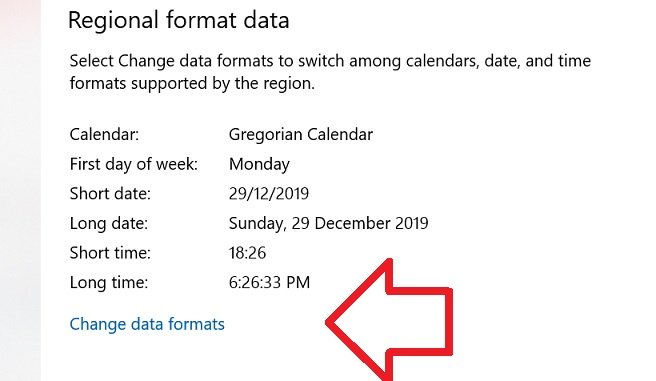
- Scroll down to the bottom of ‘Regional format data’
- Click on ‘Change data formats’
- Under ‘Short time’ select ‘9:40’

- Close the window
- Your time will now be in 24-hour format

Many Thanks. Nice Tutorial.
Thank you! I am tired of thinking in 12hr time when I work in 24hr time!
thank you…
Thank you! boy was I mad when I thought they were gonna make me change my region for a second.
Thank you!