
The steps below show how to change the Windows 10 clock to 24-hour format.
How to change Windows 10 time to 24-hour format
-
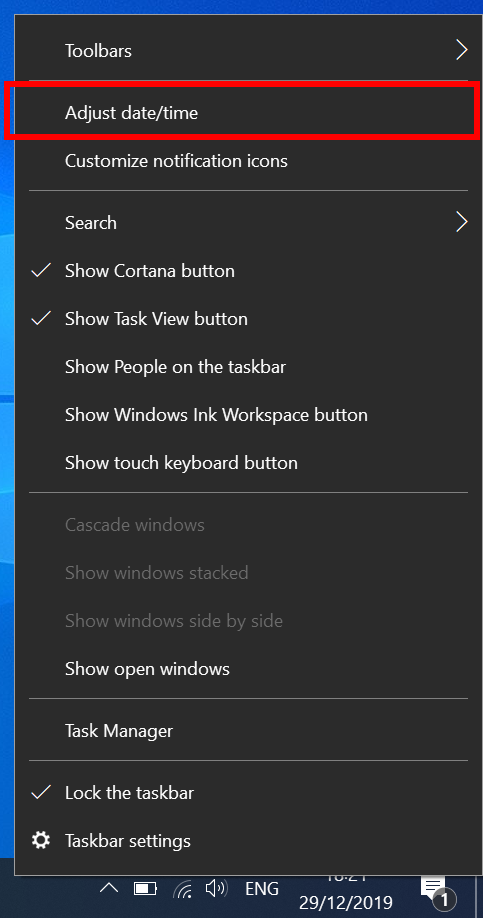
- Right-click on the clock at the bottom right of your screen then click on ‘Adjust date/time’
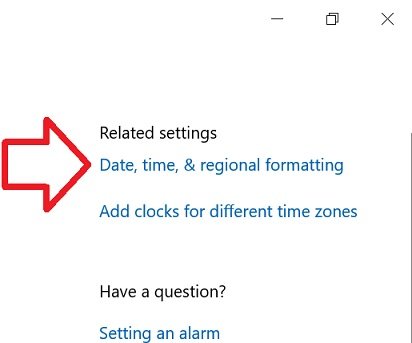
- In the right side of the window, click on ‘Date, time, & regional formatting’
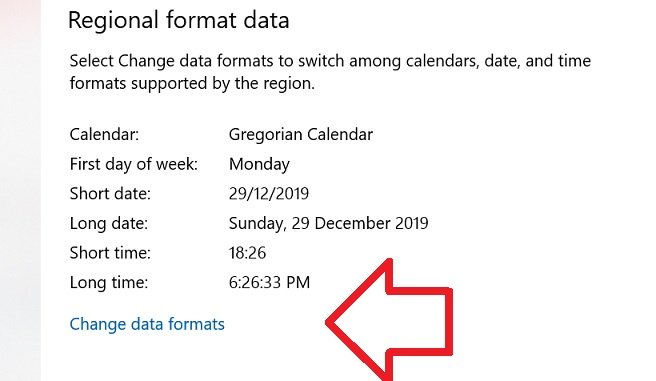
- Scroll down to the bottom of ‘Regional format data’
- Click on ‘Change data formats’
- Under ‘Short time’ select ‘9:40’

- Close the window
- Your time will now be in 24-hour format

Control panel >date and time>change calender settings>additional settings >time>short time> type in hh:mm> OK.
Thank you!, it was really helpful.
thank u, it was fast!
Thank you
Thank you, but you should use like 15.40 instead of 9.40 for many people to know that it is a 24 hour format
The East programmers should not make assumptions, it worked well for years, why do the keep breaking what worked, If it is not broke don’t fix it, woe that’s common sense, something Microsoft Cant put in AI!