For computers with a light sensor, typically laptop computers, Windows 10 has the ability to automatically adjust the screen brightness depending on the ambient light levels.
Table of contents
This feature can be more annoying than helpful – either leaving your screen too dark or frequently adjusting the brightness levels.
Here’s three ways to disable the automatic screen brightness feature.
Method 1: using the systems setting
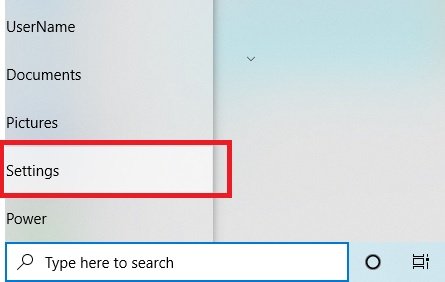
- Open the Windows start menu and click on ‘Settings’ (a cog icon)
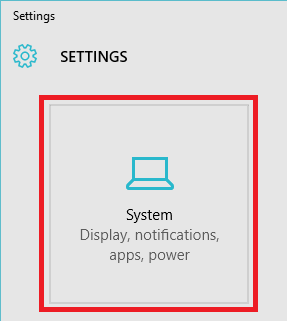
- In the settings window, click on ‘System’
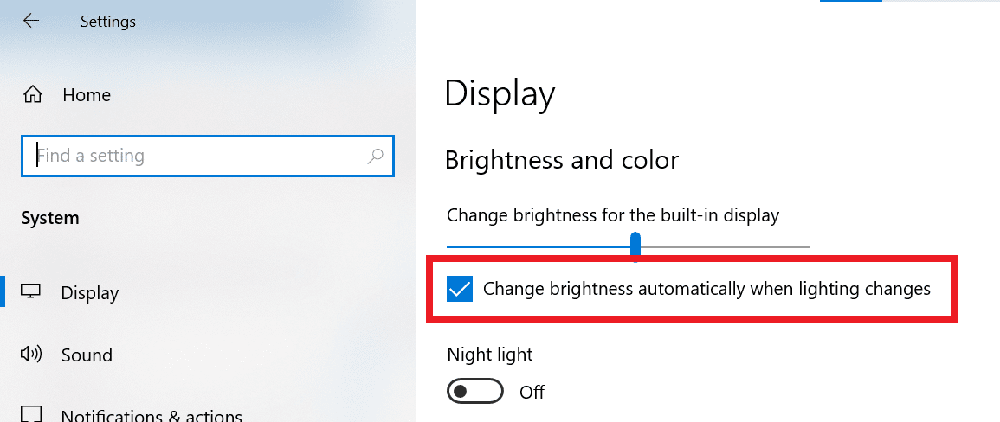
- The ‘Display’ menu should be selected on the left, if it is not – click on ‘Display’
- Untick ‘Change brightness automatically when lighting changes’
Help – I don’t have the ‘Change brightness automatically when lighting changes’ option
If you don’t have the ‘Change brightness automatically when lighting changes’ option it’s likely your computer does not have a light sensor and therefore does not have the automatic brightness feature.
If you’re sure your computer does have a light sensor – try checking the manufactures website for the correct driver and/or software package. It is possible that Windows 10 support is not provided.
In this case you will need to use the manual brightness adjustments. On laptops, these are usually done using buttons on or new the keyboard – sometimes in combination with a Fn (function) key. For desktop computers, the monitor will have buttons and a menu on the front or the side of the monitor.
Help – ‘Change brightness automatically when lighting changes’ won’t change
If your laptop is connected to two screens – in extended mode – the ‘Change brightness automatically when lighting changes’ option won’t change.
This appears to be a bug with Windows 10.
Method two: change the power plan advanced options
- Open the Windows start menu and click on ‘Settings’
- In the settings window, click on ‘System’
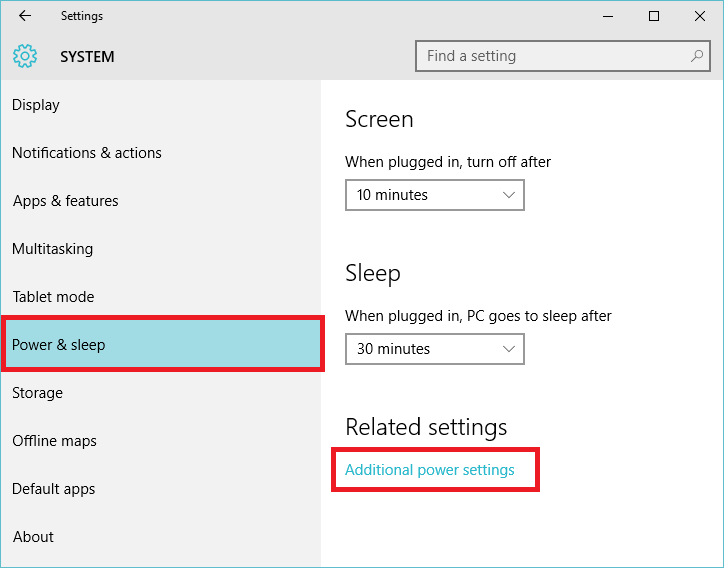
- Click on ‘Power & sleep’ in the left hand menu, then click on the ‘Additional power settings’ link
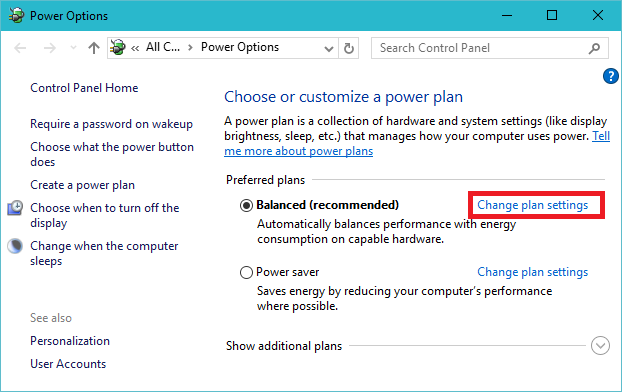
- For the power plan you currently have enabled (balanced by default – the enabled plan will be bold), click on ‘Change plan settings’.
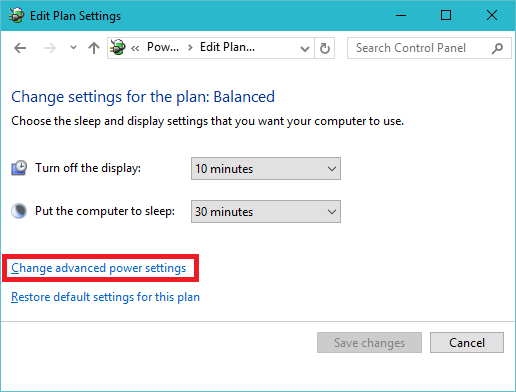
- Click on ‘Change advanced power settings’
- Expand ‘Display’ -> ‘Enable adaptive brightness’ and make sure the setting is set to ‘Off’
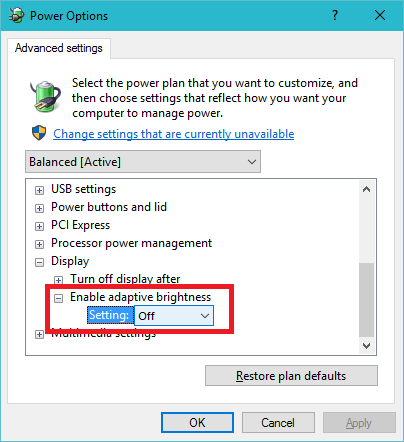
- Click ‘OK’ to save the changes.
Method 3 – Install the latest drivers from the laptop manufacture
If none of the other options worked – either your laptop does not have the light adaptive sensors, or the correct drivers are not installed.
In this case, you can try
- installing the latest driver / software updates from the laptop manufacture’s website
- opening the computer Device Manager and changing the driver for the video card to the Microsoft basic driver.
this link work for me….thumbs up guys
https://youtu.be/8E0XdZUMXuU
i can’t do the first method because there’s no “adjust my screen brightness automatically” option. and the second method, i got two options; “plugged and on battery” both of them is already off at the first place.
and my laptop is still has automatic brightness on. please help. this is very bothering me.
did anyone figure this out? i’m having this problem and it’s 2019 on my new surface laptop 2. this sucks!
YESSSSSSSSSSSSSSSSSSSSSS FINALLYYYYYYYYYYYYYYYYYY – stupid vaio sensor sucks! It’s constantly changing for no reason – windows closed, lights on, no light changes, and it just dims way down and won’t come back up, then randomly does, then down, then up, etc – drives me crazy! Thank you Windows 10!
really thanks it’s finally working with me
by stopping vaio laptop display sensors stops automatically brightness
it’s working with me
very very thanks
No ON or Off Option and the apply button is grayed out. Help pls.
Hi. If you don’t have the ‘adjust my screen brightness automatically’ option, it probably means your computer doesn’t have the light sensor required for this Windows 10 feature. I’ve updated the post to include another way to disable this feature … but Im thinking your computer doesnt have the light sensor and you’ll need to manually adjust the brightness using the laptop or monitor brightness buttons.
Thanks I did that too still didn’t work but a temporary solution I have now is set my Display adapter to microsoft basic.. and now its constant you cant high or low light adjust.
OK – wow that’s annoying for you ! Is the laptop or desktop video card old? Sounds like the manufacture doesnt have proper support for Windows 10. I’ve hit that with a whole bunch of Dell computers. Ill add your tip in above in case someone else has the same problem.
When I search for “turn auto brightness on or off” in the search bar, I get no results. Actually something shows up, but when I click on it, it doesn’t lead me to where it should.
Thanks for letting me know. It’s looking like the Windows 10 search (cortana) is inconsistent – that is, you dont always get the same results. I’ve updated the details in the post to show how to manually find the setting page if you still need it.