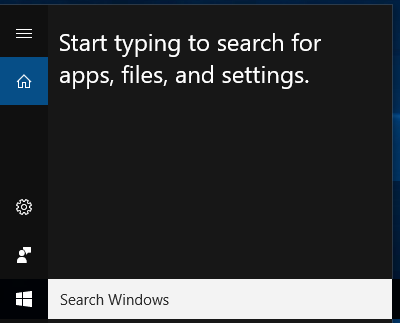
 The Windows 10 Anniversary Updates has removed the toggle switch that allowed you to easily disable Cortana.
Hopefully Microsoft will restore this, but for now to disable Cortana you need to manually through the registry editor.
Caution: the registry is a critical component of Windows – making changes without knowing what you are doing may lead to bad consequences.
Note: you will need local-administrator access on the computer to follow these steps.
Quick fix: download and run the registry file then restart the computer. Windows10-DisableCortanaSearch.zip
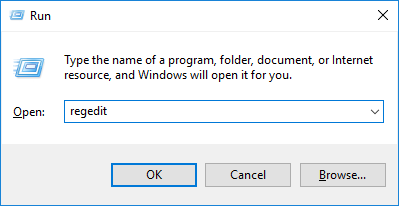
- Press the Windows button and R on your keyboard to open the Run window
- In the window, type regedit and click OK
- Using the path tree in the left of the Registry Editor – navigate to the following path
-
HKEY_LOCAL_MACHINE\SOFTWARE\Policies\Microsoft\Windows\Windows Search
- Note: if you do not have the ‘Windows Search’ path you will need to create by following these steps
- Right-click on the ‘Windows’ path click on ‘New’ then ‘Key’
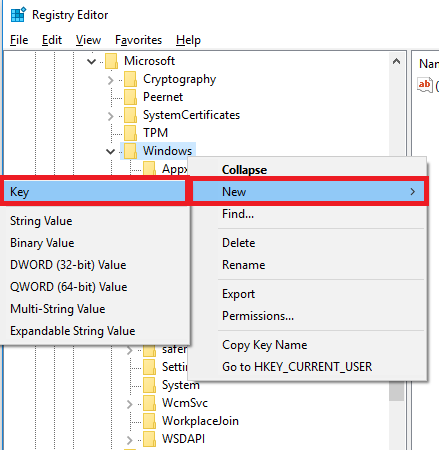
- Enter the name – Windows Search
- Right-click on the ‘Windows Search’ path and click on ‘New’ then ‘DWORD (32-bit) Value’
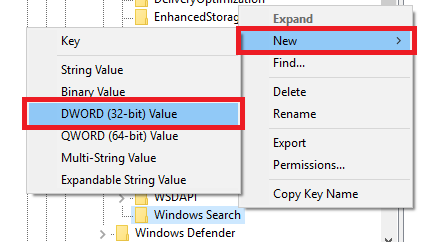
- Enter the name – AllowCortana
- The default value should be 0 (zero) – if it is not – double click on it and set it to 0
- Restart the computer and standard non-Cortana search will be back again.