These steps detail how to manually add a workstation computer to a collection in Microsoft System Center Configuration Manger 2007 R2 (SCCM).
- Open the System Centre Configuration Manager console.
- Expand ‘Computer Management’
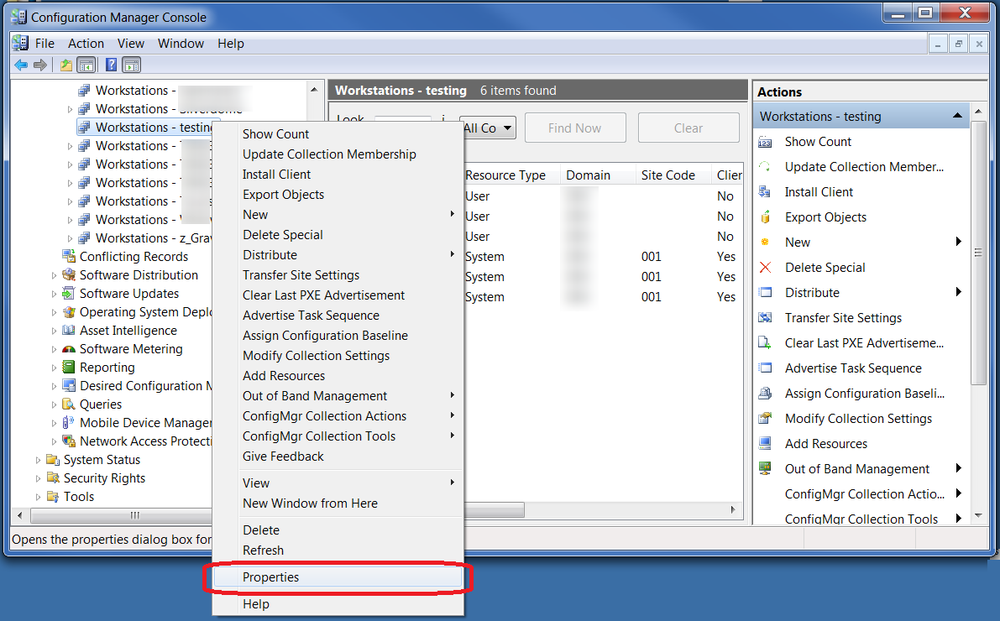
- Right click on on the collection group . (e.g ‘Workstations – Testing Group’) and select ‘Properties’
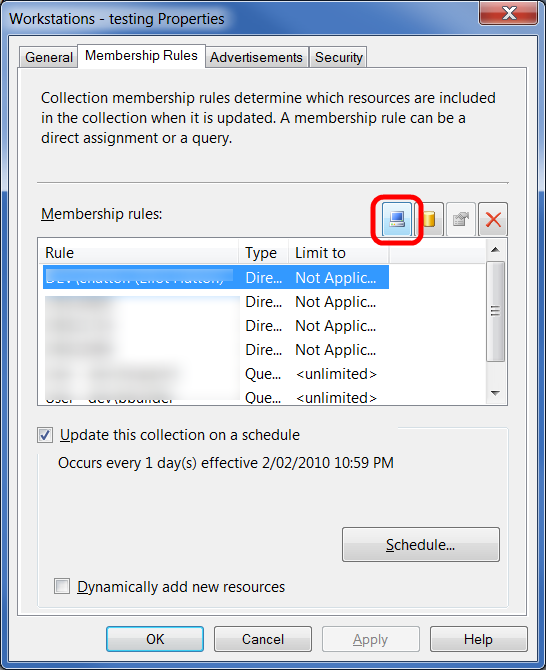
- Select the ‘Membership Rules’ tab and click on the computer icon.
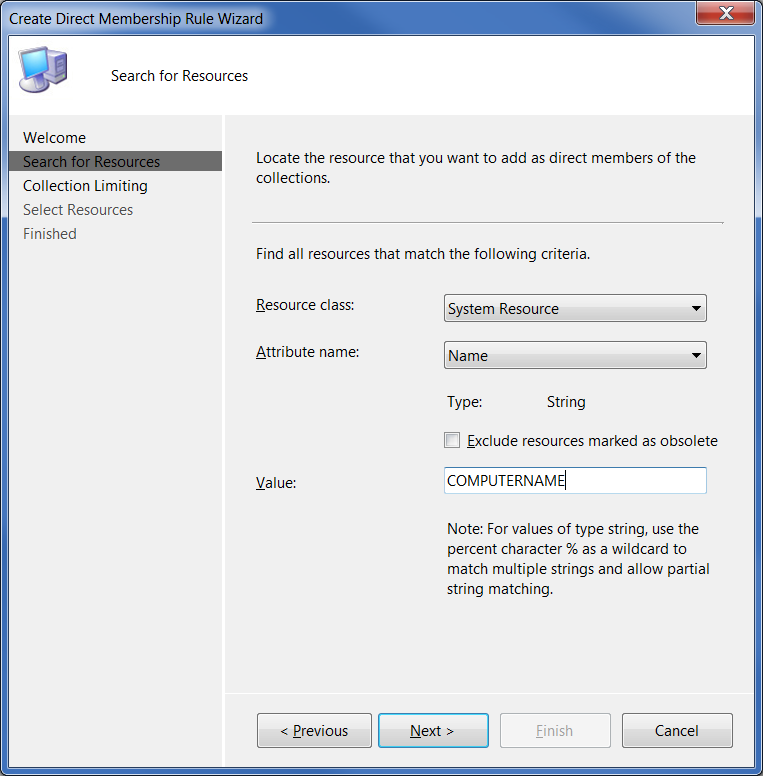
- Click on ‘Next’
- Under ‘Resource class’ select ‘System Resource’
- Under ‘Attribute name’ select ‘Name’
- Enter the name of the workstation to be added, e.g. COMPUTERNAME
- Click on ‘Next’, and ‘Next’ again
- Click on ‘Select All’ and then ‘Finish’
- Click on ‘OK’ to save the changes.
- Right click on the ‘Workstations – testing’ collection and select ‘Update collection membership’
- Select ‘OK’ to start the update process.
I can create collection but still cant add any client
two ways either use a utility called collection commander by source forge or use add resources and copy hostnames with a comma delimeter
how to add more than one machine at a time?
Use the SCCM Right click tools to do this, its much quicker 🙂
http://myitforum.com/cs2/blogs/rhouchins/archive/2008/04/09/sccm-right-click-tools.aspx
This was of great help. Thanks. 🙂