The following steps show how to create a silent install package of Firefox, complete with custom configuration.
Note: these settings will be applied for all new and existing users and can not be changed by users.
It does the following tasks:
- Install Firefox silently, without Firefox being the default
- Disables the ‘Automatically check for updates’ option
- Disables the import wizard when Firefox first loads
- Disables the ‘Always check to see if Firefox is the default browser on startup’ option
- Sets homepage to ‘http://www.google.com’ (you can change this in your configuration)
- Disables the ‘know your rights’ button from displaying on first run
- Disables the request to send performance data from displaying
How to customise and deploy (silent install) Firefox
- Create a temporary working folder for saving the files into (for example, create C:\TEMP\Firefox)
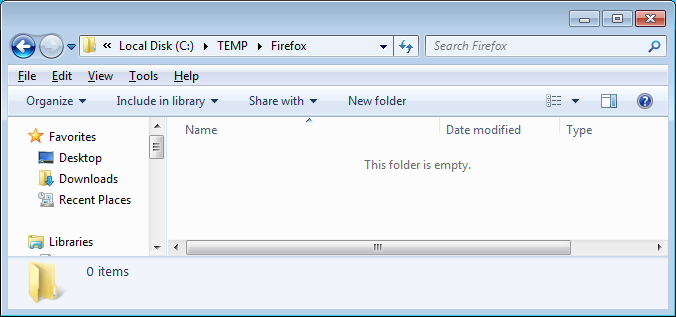
- Download the latest install file at http://www.mozilla.org/en-US/firefox/all . Save to C:\TEMP\Firefox
- Create a new text file called ‘override.ini’ and copy in the following information:
[XRE]
EnableProfileMigrator=false
- Create a new text file called ‘local-settings.js’ and copy in the folling information:
pref("general.config.obscure_value", 0);
pref("general.config.filename", "mozilla.cfg");
- Create a new text file called ‘mozilla.cfg’ and copy in the following information:
//Firefox Default Settings
// set Firefox Default homepage
pref("browser.startup.homepage","http://www.google.com");
// disable default browser check
pref("browser.shell.checkDefaultBrowser", false);
pref("browser.startup.homepage_override.mstone", "ignore");
// disable application updates
pref("app.update.enabled", false)
// disables the 'know your rights' button from displaying on first run
pref("browser.rights.3.shown", true);
// disables the request to send performance data from displaying
pref("toolkit.telemetry.prompted", 2);
pref("toolkit.telemetry.rejected", true);
- Create a new text file called ‘install.cmd’ and copy in the following information
@echo off
REM==========================================
REM Install FireFox 106.0.1
REM==========================================
REM Date : 23 October 2022
REM Author : www.itsupportguides.com
REM .
REM Script Details:
REM --------------
REM This script will:
REM + silently install or upgrade Firefox WITHOUT Firefox being the default browser
REM + Disables the 'Automatically check for updates' option
REM + Disables the 'Always check to see if Firefox is the default browser on startup' option
REM + Deletes desktop icon
REM + Disables the Import Wizard
REM + Works for Windows 7 /8 32-bit and 64-bit
REM .
REM===========================================
echo Installing Firefox - Please Wait.
echo Window will close after install is complete
REM Installing Firefox
"%~dp0Firefox Setup 106.0.1.exe" -ms
REM Install 64-bit customisations
if exist "%ProgramFiles(x86)%\Mozilla Firefox\" copy /Y "%~dp0override.ini" "%ProgramFiles(x86)%\Mozilla Firefox\browser\"
if exist "%ProgramFiles(x86)%\Mozilla Firefox\" copy /Y "%~dp0mozilla.cfg" "%ProgramFiles(x86)%\Mozilla Firefox\"
if exist "%ProgramFiles(x86)%\Mozilla Firefox\" copy /Y "%~dp0local-settings.js" "%ProgramFiles(x86)%\Mozilla Firefox\defaults\pref"
REM Removes Firefox Desktop Icon - Windows 7 / 8
if exist "%public%\Desktop\Mozilla Firefox.lnk" del "%public%\Desktop\Mozilla Firefox.lnk"
- Copy the Firefox install file, override.ini, mozilla.cfg, local-settings.js and install.cmd to your software package share
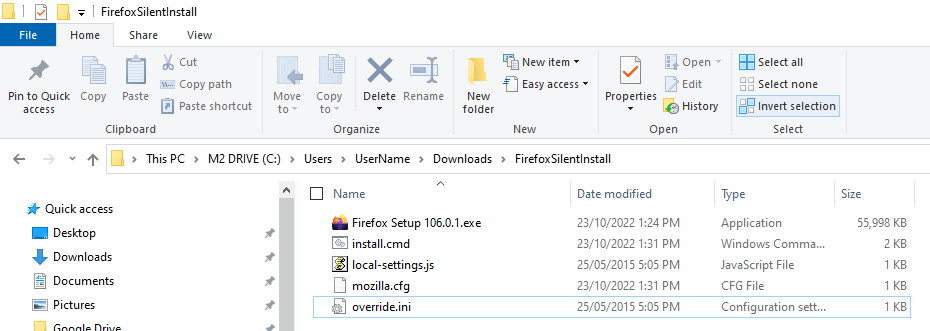
- You can now create your SCCM package or deploy the software by using install.cmd.
For more information on creating SCCM packages see SCCM – How to Distribute Software Packages.
More Firefox configurations:
Please refer to the following articles for some more common customisations:
can’t get it work when installing new version over previous one. Does anyone have similar error to this one when launchig:
[quote]Nie udało się uruchomić programu Netscape.cfg/AutoConfig. Proszę skontaktować się z administratorem.
Błąd: Nie udało się pref: [Exception… “Component returned failure code: 0x8000ffff (NS_ERROR_UNEXPECTED) [nsIPrefBranch.setIntPref]” nsresult: “0x8000ffff (NS_ERROR_UNEXPECTED)” location: “JS frame :: prefcalls.js :: pref :: line 67” data: no][/quote]
solution about those having the “Failed to read the configuration file” error message trying to start Firefox after install with version 9+
found answer on this board:
[url]http://support.mozilla.org/en-US/questions/898549[/url]
davidtse916 comment
mozilla.cfg
[quote]// stops the request to send performance data from displaying
pref(“toolkit.telemetry.rejected”, true);
// disables the request to send performance data from displaying
pref(“toolkit.telemetry.prompted”, 2);
pref(“toolkit.telemetry.rejected”, true);[/quote]
Great job!
Just a comment about those having the “Failed to read the configuration file” error message trying to start Firefox after install: take care to the double quotes signs you use in your cfg file! For example, if you copy and paste Fabien’s text, you have the problem.
Replace all double quotes signs by standard signs and you solve your problem. 😉
Olo – Yes, I have confirmed this works the same with Firefox 9.0.1.
The article and download has been updated.
Hi,
thank you for this great article. Just wanted to know – does it apply to Firefox 9 too?