The following steps show how to remove the link between a Word document and a mail merge data source.
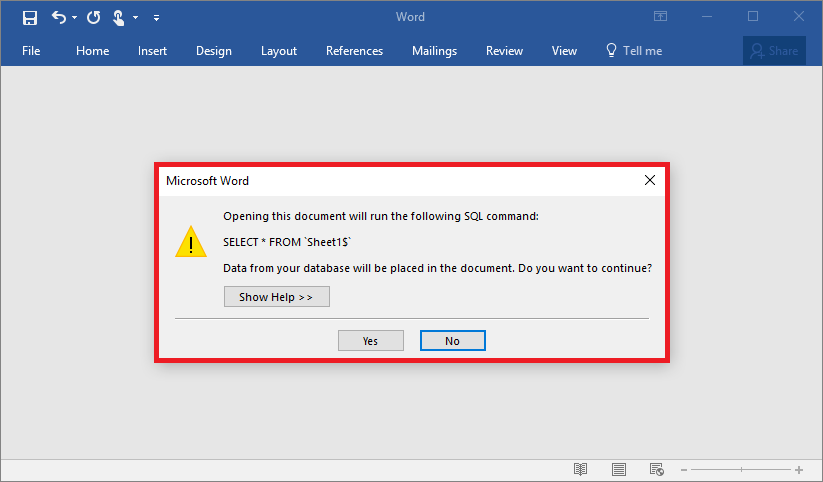
When you open a Word document that has mail merge data source you see a message that reads:
Opening this document will run the following SQL command:
...
These steps work in both Word 2013 and Word 2016.
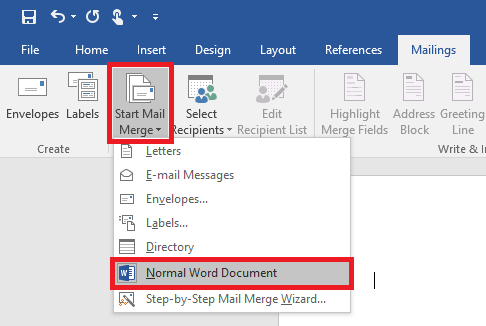
- With the Word document open, open the ‘Mailings’ tab
- Click on the ‘Start Mail Merge’ button
- Then click on ‘Normal Word Document’
- Close the save the document – the link to the data source has now been removed.
Michal is right. Where the document is based on a template you must also remove the template for the document. You do this by going to the Developer menu, select Document Template and delete the field content of Document template.
Neither to me, it doesn’t work 🙁
but I’m using Office 2019 prof
I find solution for me. I created my file from template which has data source. That’s why it didn’t work for me.
In my case I had to remove the old template document, which triggered the query. This is possible in the developer tools menu, on the very right.
This did not work for me. I am unable to select any option at all 🙁 It’s just saved the merge data in there perm.