The following steps show how to remove empty columns from an Excel spreadsheet using Excel 2016.
Note: this process does not account for partially empty columns. For example if a row in column 2 was empty that column would also be deleted.
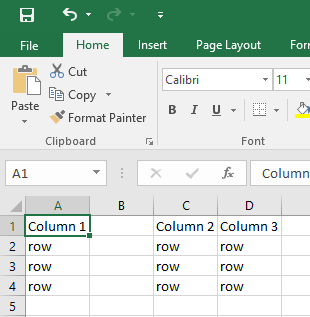
- With your spreadsheet open, press F5 on the keyboard. The ‘Go To’ window will open.
- Click on the ‘Special’ button

- Click on ‘Blanks’ then click ‘OK’
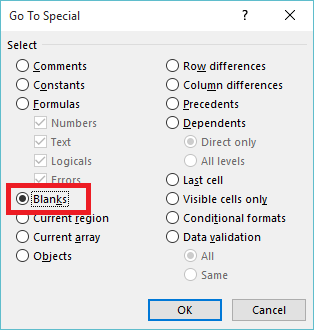
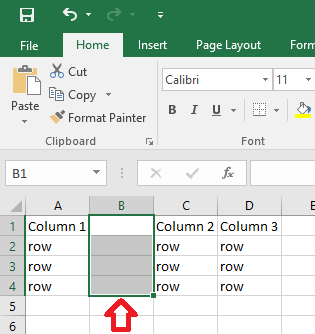
- This will select all the empty fields within your table.
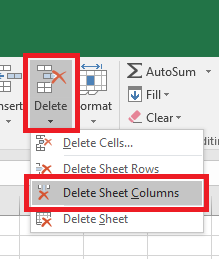
- In the ‘Home’ ribbon, click on the arrow below the ‘Delete’ button then click on ‘Delete Sheet Columns’
- Your empty columns have now been removed.
Hi
How to delete empty columns that are filled with color. For example, only empty columns that are blue should be removed, not empty red columns.