HandBrake is a free tool that’s available for Windows, Mac OS and Ubuntu that allows you to take a video in various formats and convert it to an MP4.
The steps below show how to rotate videos using HandBrake.
How to rotate and flip videos using Handbrake
- If you don’t already have HandBrake, it can be downloaded here: https://handbrake.fr/
- Open HandBrake and load your video using the ‘Source’ button
- Choose where to save the rotated video by clicking on the ‘Browse’ button and select where the converted file will be saved.
- Open the ‘Filters’ tab
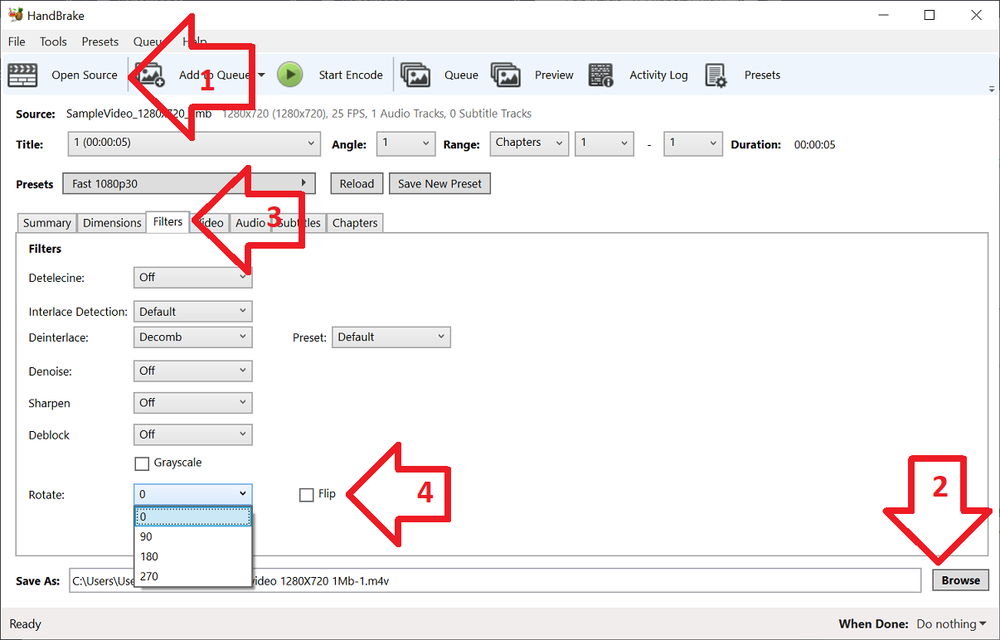
- The ‘Rotate’ option allows you to choose four different options
- 0 – do nothing
- 90 – rotate to the right
- 180 – turn upside down
- 270 – rotate to the left
- Choose the rotate option you require
- Click ‘Start Encode’ to begin
- At the bottom of the window you will see the progress
Help! It didn’t work
Try the manual way of rotating, by applying manual filters.
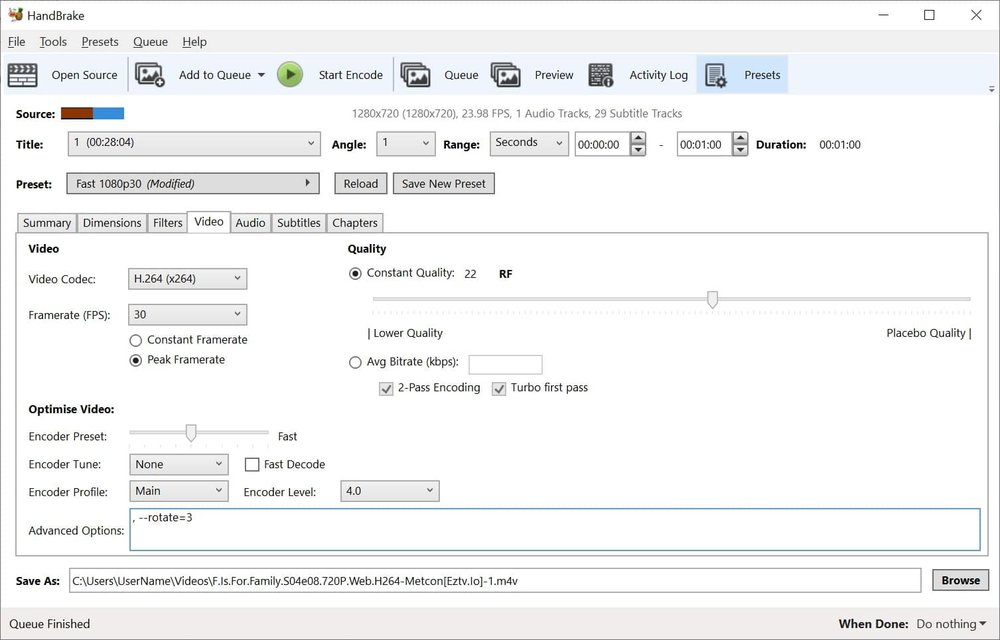
- Open the ‘Video’ tab
- Copy the desired command from below and paste into ‘Advanced Options’
- Once you have the required command entered, click ‘Start Encode’ to begin
Rotate 90 degrees clockwise
To rotate 90 degrees clockwise, enter the following command into the ‘Extra Options’ setting:
, --rotate=4
Rotate 90 degrees anti-clockwise
To rotate 90 degrees anti-clockwise, enter the following command into the ‘Extra Options’ setting:
, --rotate=7
Rotate 180 degrees (upside down)
To rotate 180 degrees so that the video is upside down, enter the following command into the ‘Extra Options’ setting:
, --rotate=3
Other options?
The official HandBrake documentation has more detail on what other options are available.
1 : x flip
2 : y flip
3 : 180 degrees rotate (also the DEFAULT)
4 : 90 degrees rotate (clockwise)
5 : 90 degrees rotate + y flip
6 : 270 degrees rotate + y flip
7 : 270 degrees rotate
Not workin’ for me in 0.10.5.0. :/
This is good info.. They added rotation to the “filters” tab in 1.0.1. That should be easier.
Thanks to Handbrake I managed to put in order my multimedia mess of old pictures and video files on my old Windows 7, where video files rotation was the main issue.
Here’s my procedure:
https://drive.google.com/file/d/0B4pbwsE1PruUVmFGUHRrRk1zbmc/view?usp=sharing
A life saver still and will always be an outstanding software .. Handbreak , so many features in one small file
Thank you, so much!! The last time I had this issue, I had to downoad some crapware piece of junk video encoding software that stuck watermarks all over my tiny 30 second clip. I don’t know how I missed this article then, but I’m glad I found you now! I knew it couldn’t have been difficult to achieve in Handbrake, just needed some insightful person to reveal it.
Thanks again! <3
PS. I run adblockers but I'd love the ability to make a small donation to such a helpful site so that I can keep running ad blockers, but also show my thanks. Is there any way to achieve this?
Hey – Thanks for the kind words and confirming the instructions still work.
I’m not really sure where I stand with adblockers/ads/donations. But no need at all, just glad you took the time to say thanks and that it still works. ‘Donations’ may be too hard for me to manage, taxes and all – not sure how that all works.