HandBrake is a free tool that’s available for Windows, Mac OS and Ubuntu that allows you to take a video in various formats and convert it to an MP4.
Table of contents
The steps below show how to rotate videos using HandBrake.
How to rotate and flip videos using Handbrake
- If you don’t already have HandBrake, it can be downloaded here: https://handbrake.fr/
- Open HandBrake and load your video using the ‘Source’ button
- Choose where to save the rotated video by clicking on the ‘Browse’ button and select where the converted file will be saved.
- Open the ‘Filters’ tab
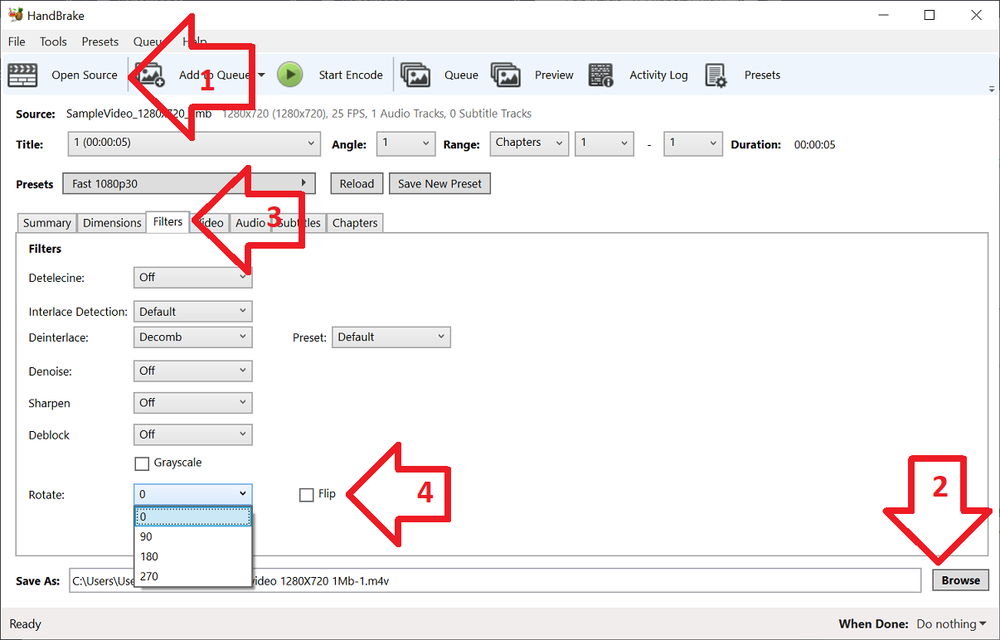
- The ‘Rotate’ option allows you to choose four different options
- 0 – do nothing
- 90 – rotate to the right
- 180 – turn upside down
- 270 – rotate to the left
- Choose the rotate option you require
- Click ‘Start Encode’ to begin
- At the bottom of the window you will see the progress
Help! It didn’t work
Try the manual way of rotating, by applying manual filters.
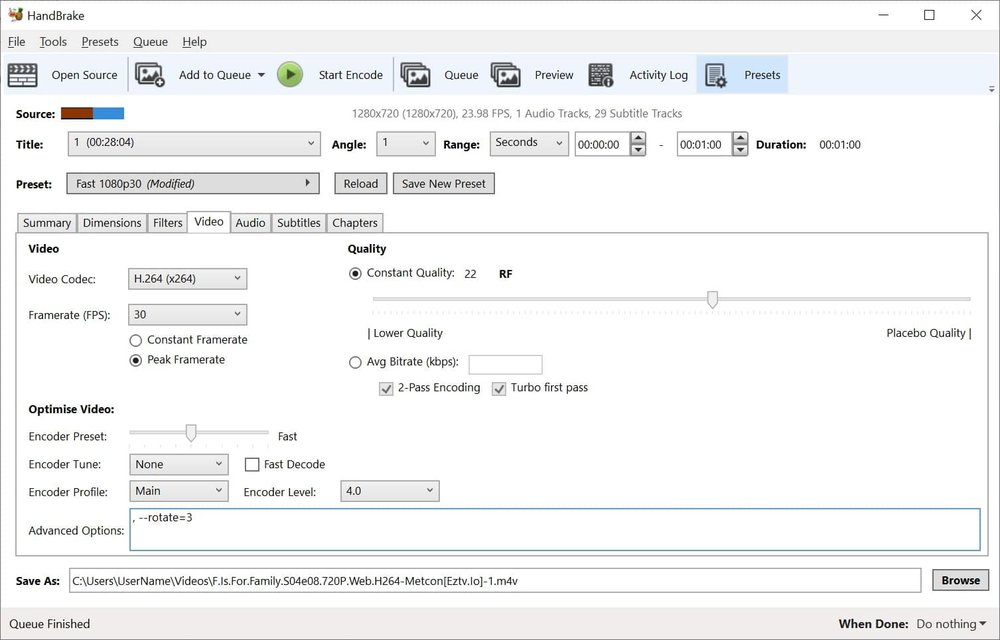
- Open the ‘Video’ tab
- Copy the desired command from below and paste into ‘Advanced Options’
- Once you have the required command entered, click ‘Start Encode’ to begin
Rotate 90 degrees clockwise
To rotate 90 degrees clockwise, enter the following command into the ‘Extra Options’ setting:
, --rotate=4
Rotate 90 degrees anti-clockwise
To rotate 90 degrees anti-clockwise, enter the following command into the ‘Extra Options’ setting:
, --rotate=7
Rotate 180 degrees (upside down)
To rotate 180 degrees so that the video is upside down, enter the following command into the ‘Extra Options’ setting:
, --rotate=3
Other options?
The official HandBrake documentation has more detail on what other options are available.
1 : x flip
2 : y flip
3 : 180 degrees rotate (also the DEFAULT)
4 : 90 degrees rotate (clockwise)
5 : 90 degrees rotate + y flip
6 : 270 degrees rotate + y flip
7 : 270 degrees rotate
I used Handbrake, and it rotated fine, but the sound disappeared. The input was MyFile.AVI, the output the default m4v which I then edited to MyFile.mp4. The sound also disappears if I only do the conversion, no rotation. Codec Uncompressed 8-bit PC, Mono, 8000 Hz, 64kbps. How do I keep the sound? (I’ve used Handbrake before to convert VOB files to MP4 with no problem, no loss of sound rotate.)
I solved the problem using VLC for the AVI to MP4 conversion, then using Handbrake for the rotation.
I use iDealshare VideoGo to rotate videos: Step 1: Click Add File button to add video to iDealshare VideoGo; Step2: Click Effect button to find the Rotate option; Step 3: Click Convert
button to finish rotating videos.
i recommend you use Avdshare Video Converter to rip or rotate videos.
great, I love handbrake and another tool called wonderfox hd video converter factory pro is also nice. Nice tool to rotate, flip, cut and edit videos.
Awesome! I use this: http://www.videostudiopro.com/en/pages/rotate-video/ to rotate videos on my PC but I needed a free alternative for my Mac. Thank you very much for helping me out 🙂