Problem
When attempting to use the built in camera on a Lenovo laptop the camera does not work. Instead of seeing the image from the camera you see an image with a grey background and a white camera with a cross through it.
On this pageJump to a section
The same image is seen with all applications.

Solution
This issue appears to be a bug with the Lenovo software – where the camera’s “privacy mode” is enabled by default.
Solution 1: Check for a lens cover
- Look for where your camera is on the laptop – usually this is above the monitor on the frame
- Check if it has a lens cover and whether it is closed
- These are usually a small plastic strip that slides over
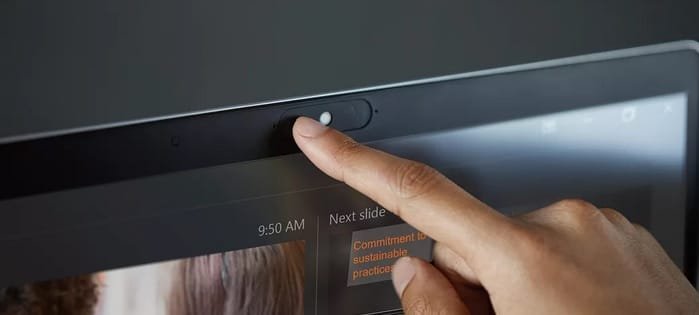
Solution 2: Enable using keyboard button
- Look on the laptop keyboard for a camera icon – this is usually around F8
- Press the key to see if it enables the camera
- If it doesn’t – try holding the ‘Fn’ key and the camera key
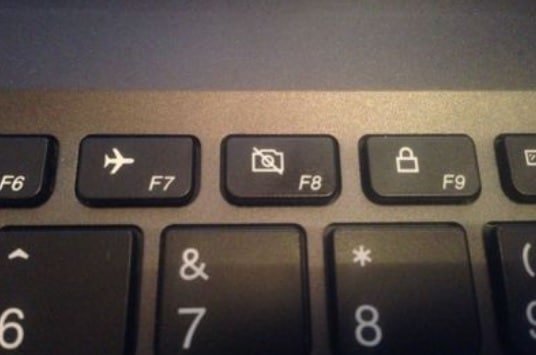
Solution 3: Enable using Lenovo Vantage app
To re-enable the camera:
- Open the Windows start menu, and type ‘Lenovo Vantage’ and open it (if you do not have Lenovo Vantage installed you can find it on the Windows App Store).
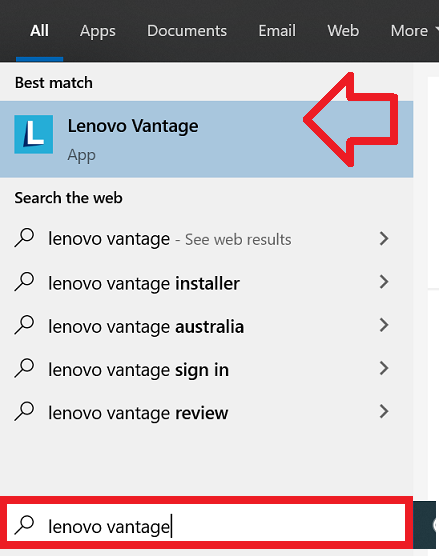
- Click on the menu icon at the top right and then click on ‘My Device Settings’
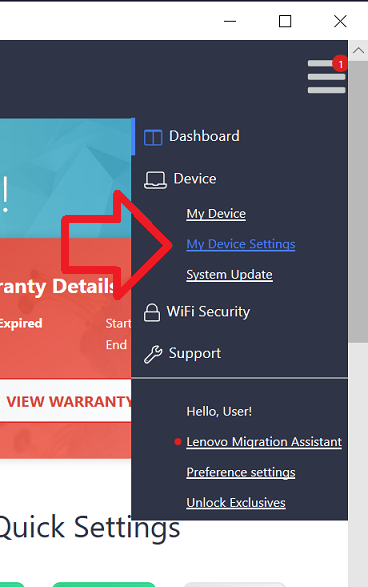
- At the top of the page, click on ‘Display & Camera’
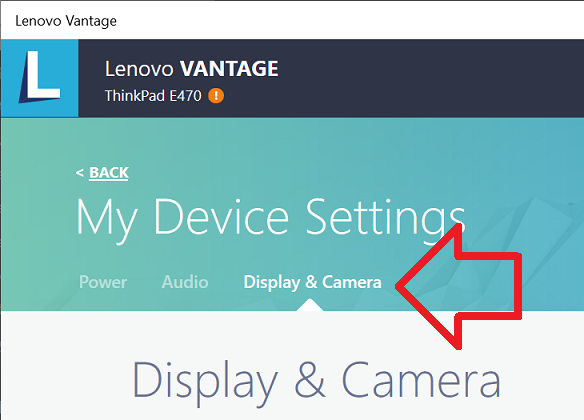
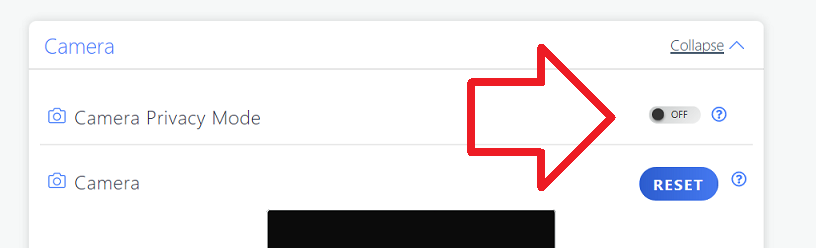
- Scroll down until the ‘Camera’ section
- Set ‘Camera Privacy Mode’ to ‘OFF’
Help! This didn’t work!
If these instructions didn’t help you, you could try …
Updating the Lenovo Settings Dependency Package software.
To do this you’ll need to
- go to the Lenovo website
- search for your model of Lenovo
- download and install the Lenovo Settings Dependency Package software.
After this has been done repeat solution 3 above.
Uninstalling the Lenovo Settings Dependency Package software
This is moderate risk – you may find that some hardware stops working correctly or that you need to use the software to manage settings, but cannot due to it being uninstalled. Having said this, on my Lenovo laptop I do not use this software (for both Windows 8/8.1 and Windows 10) with no issues at all.
- To uninstall the software click on the Windows button on your keyboard,
- type ‘programs and features’ when you see it appear in the list – click on it.
- Search for “lenovo settings” select it from the list and click uninstall.
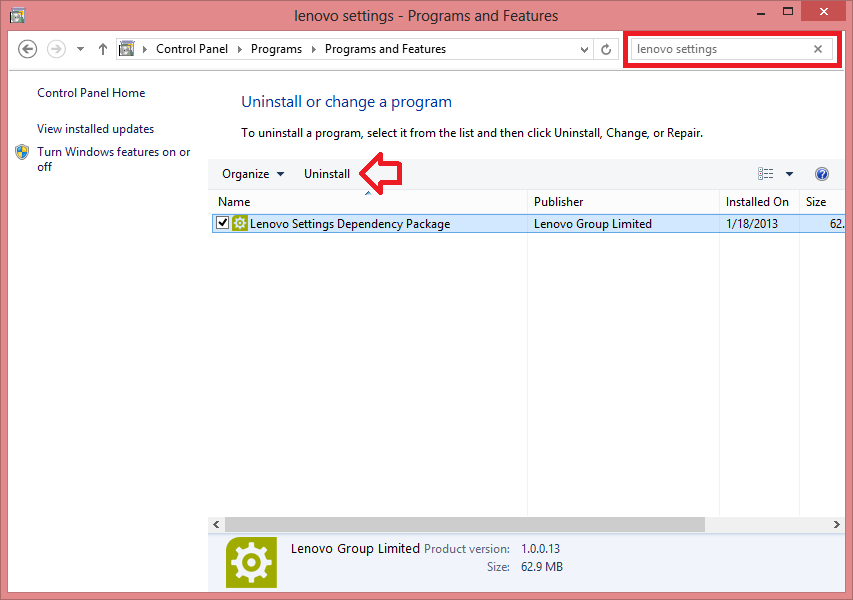
- Restart and the camera should be working again.
Replace device driver with generic Microsoft driver
- Click on the Windows button at the bottom left of the screen and type ‘Device Manager’
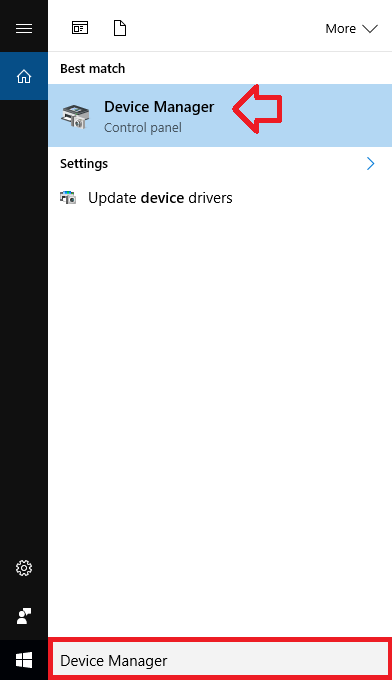
- From the list, expand ‘Imaging Devices’ and click on ‘Update Driver Software’
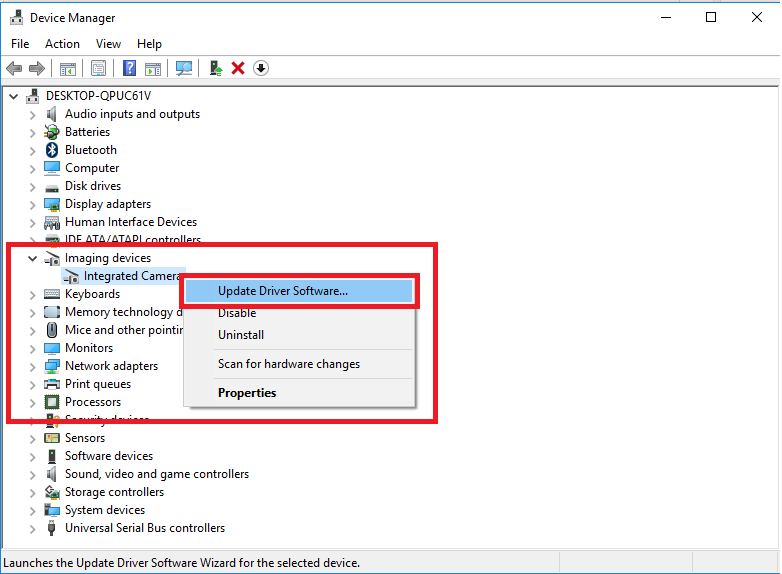
- Choose ‘Browse my computer for driver software’
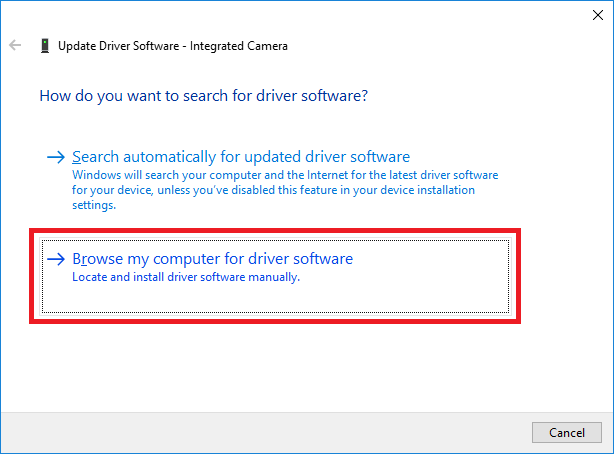
- Click on ‘Let me pick from a list of device drivers on my computer’

- Make sure ‘USB Video Device‘ is selected and click ‘Next’
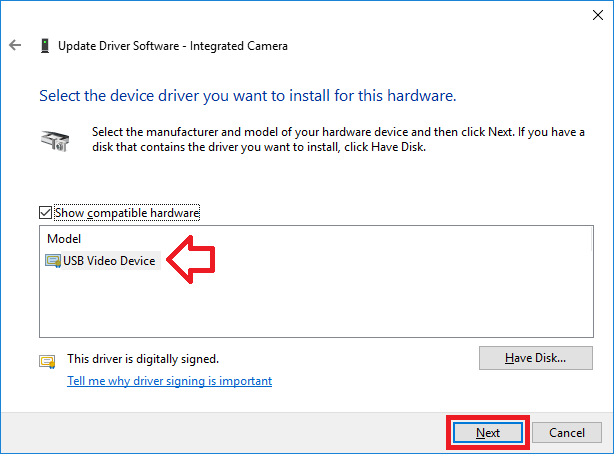
- The driver will now install. When finished click ‘Close’.
- Close the Device Manager windows.
- The camera should now be working with the generic device driver.
Hi,
I have a similar, but different issue.
Webcam starts normally, but after few seconds it laggs and turns off automatically. This is happening in every software and application (Skype, Hangouts, Facebook Video call). Tried several browsers and all above listed proposed solution, however the problem remains.
Any ideas?
Thanks
Adam
(Windows 10 Pro, Lenovo ThinkPad T470, all updates installed)
I habe exactly the same problem on a approx. five year old Lenovo Yoga. It worked well for a long time, I used the webcam wirh skype. Now, after some time without checking, it does exactly what you wrote: In any application it stops after a few seconds! Actually, this also happens when use an external USB Webcam! So it cannot be the specific device driver I guess…
Thank you so much! pressing the Fn and the F8 key worked for me.
Thanks so much!
THANK YOU. I was looking for this solution half a day, until I uploaded the gray camera icon in the google picture search. Your page popped up first and answered all my questions.
Thank you.
↑ My words exactly. Thanks a million.