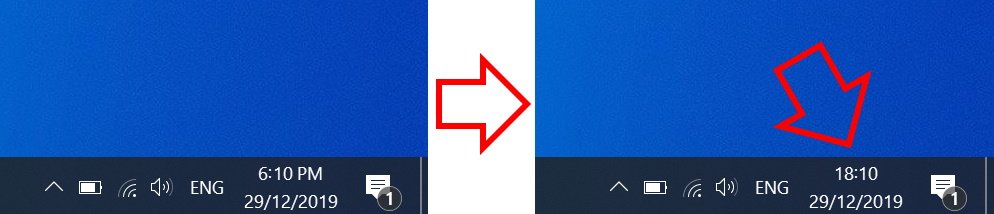
The steps below show how to change the Windows 10 clock to 24-hour format.
How to change Windows 10 time to 24-hour format
-
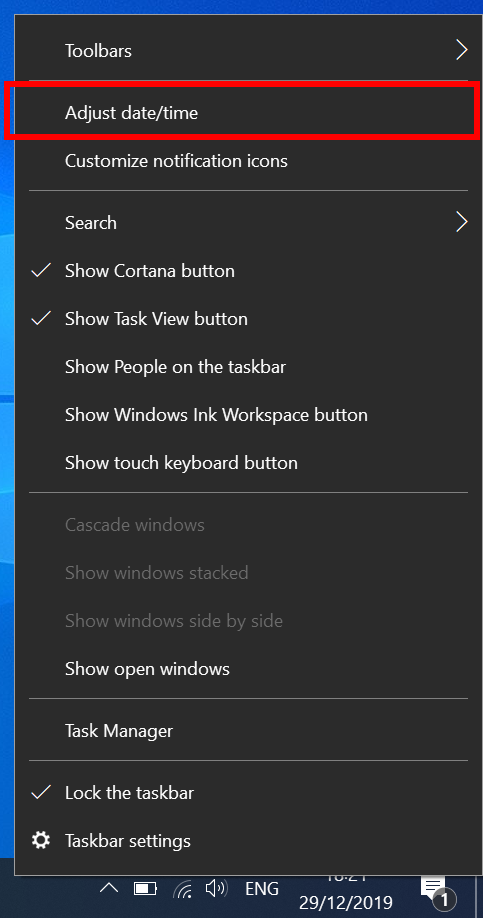
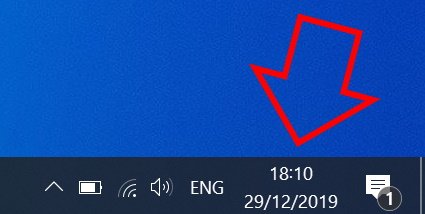
- Right-click on the clock at the bottom right of your screen then click on ‘Adjust date/time’
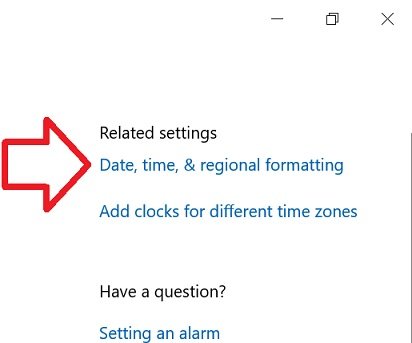
- In the right side of the window, click on ‘Date, time, & regional formatting’
- Scroll down to the bottom of ‘Regional format data’
- Click on ‘Change data formats’
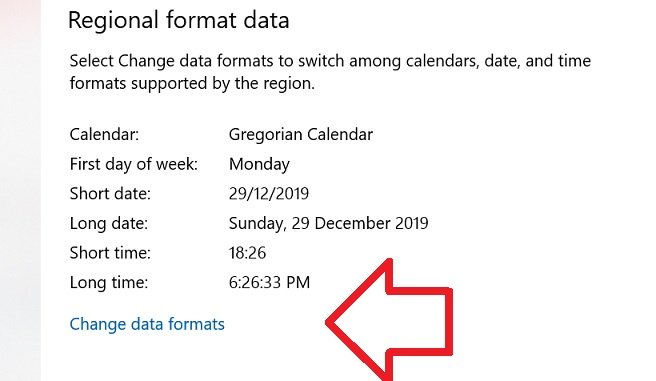
- Under ‘Short time’ select ‘9:40’

- Close the window
- Your time will now be in 24-hour format
It used to be simple. 2 options, 12hr or 24. now 8 and not 1 says 24hr… …
Thank You. The screen shot choices looked a little different by 2020-02-28, but I figured out that clicking on “Short Date” and choosing the one without AM or PM gave me 24 hour time.
Thank you so much, totally spent 30 minutes trying to figure that one out.
This was the Best
I always had so much hard time finding the right way to do this and end up no luck
Until today i found this 3 second fix
Many thanks
I have already doing that but the display writes 12 hour format.