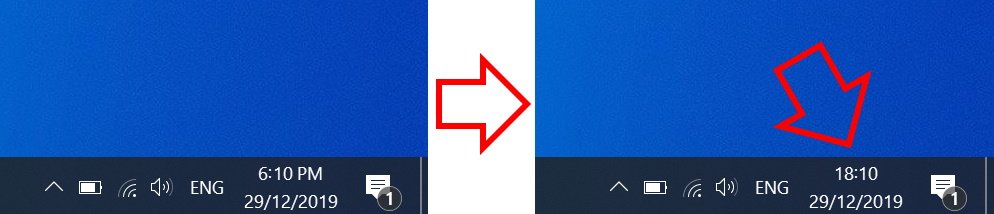
The steps below show how to change the Windows 10 clock to 24-hour format.
How to change Windows 10 time to 24-hour format
-
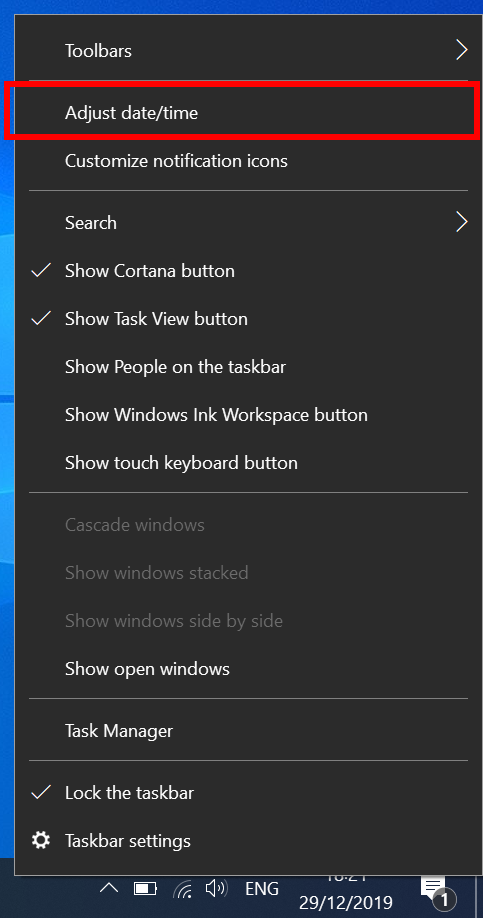
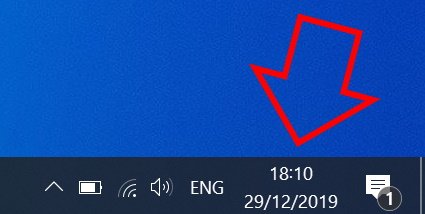
- Right-click on the clock at the bottom right of your screen then click on ‘Adjust date/time’
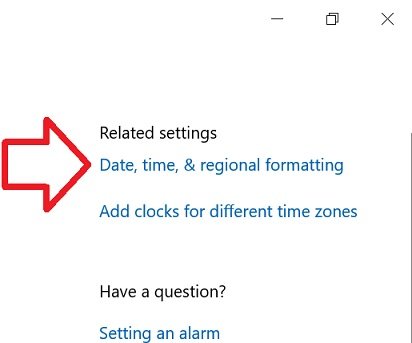
- In the right side of the window, click on ‘Date, time, & regional formatting’
- Scroll down to the bottom of ‘Regional format data’
- Click on ‘Change data formats’
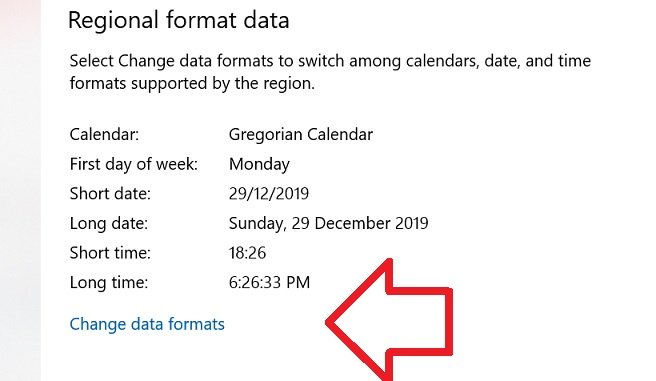
- Under ‘Short time’ select ‘9:40’

- Close the window
- Your time will now be in 24-hour format
Thank you that was Simple and hassle free
🙂
THANK YOU! Yeesh Win10 is making me crazy. Thank you so much.
Thank you!
There is NOT a colon in a 24-hour clock!
M$ does such a wonderful job of hiding the most important settings behind 20 thousand clicks and hidden windows… and often using gibberish like “9:40”. Why not use a time where it’s obvious that you are talking 24h time format, like 21:40???