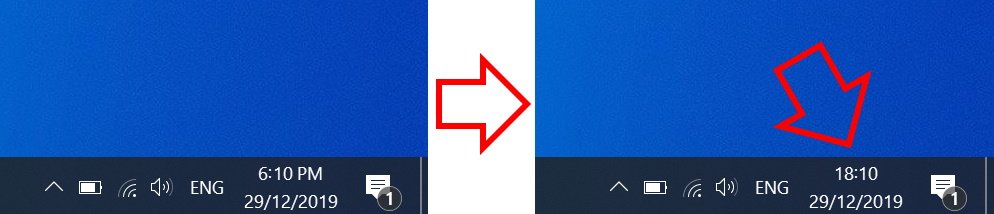
The steps below show how to change the Windows 10 clock to 24-hour format.
How to change Windows 10 time to 24-hour format
-
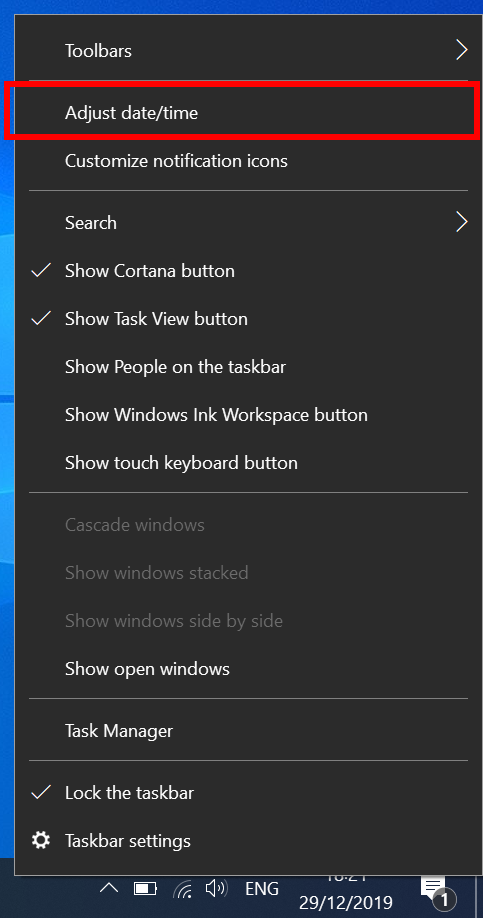
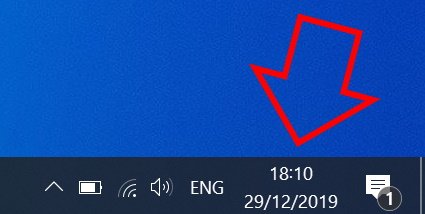
- Right-click on the clock at the bottom right of your screen then click on ‘Adjust date/time’
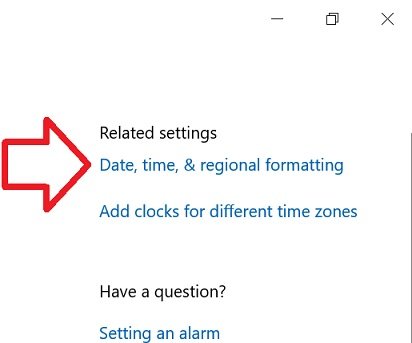
- In the right side of the window, click on ‘Date, time, & regional formatting’
- Scroll down to the bottom of ‘Regional format data’
- Click on ‘Change data formats’
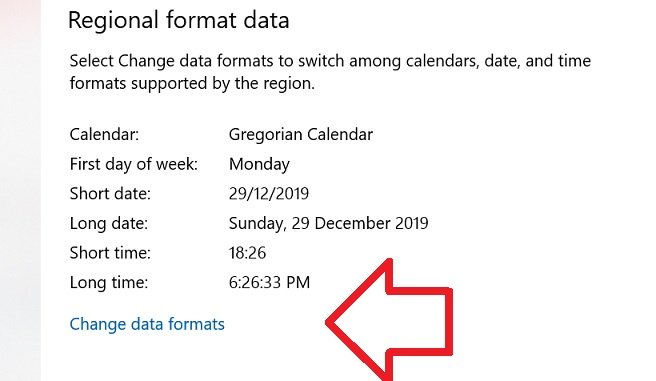
- Under ‘Short time’ select ‘9:40’

- Close the window
- Your time will now be in 24-hour format
America, democRATs take the AM and PM time formats and stick ’em up yours….!
hi thanks alot
Dear god, it’s like a secret they don’t want you to find. How utterly cretinous.
the stupids think for settings a came across in over 50 years it experience i wait for something even more silli
thanks!
Many companies had 24-hour time as the default since the 1970’s. For example, DEC. Microsoft was pandering to the masses by using AM/PM with all its annoyances as the default. Even if that were appropriate, it should have been much easier to turn it off than it has been over the years.