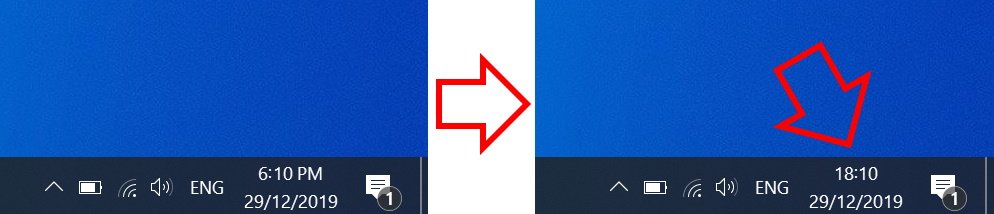
The steps below show how to change the Windows 10 clock to 24-hour format.
How to change Windows 10 time to 24-hour format
-
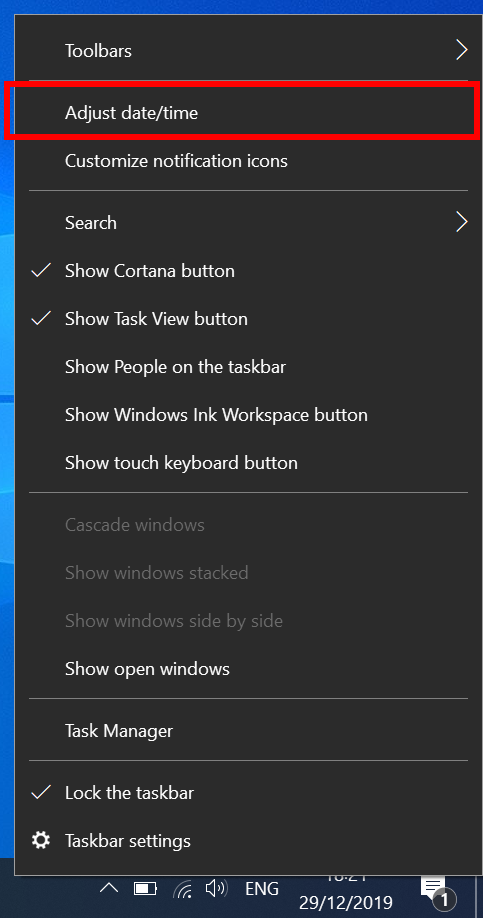
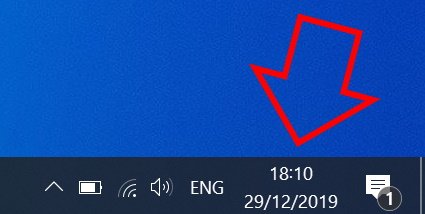
- Right-click on the clock at the bottom right of your screen then click on ‘Adjust date/time’
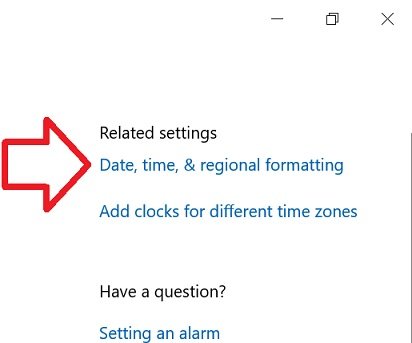
- In the right side of the window, click on ‘Date, time, & regional formatting’
- Scroll down to the bottom of ‘Regional format data’
- Click on ‘Change data formats’
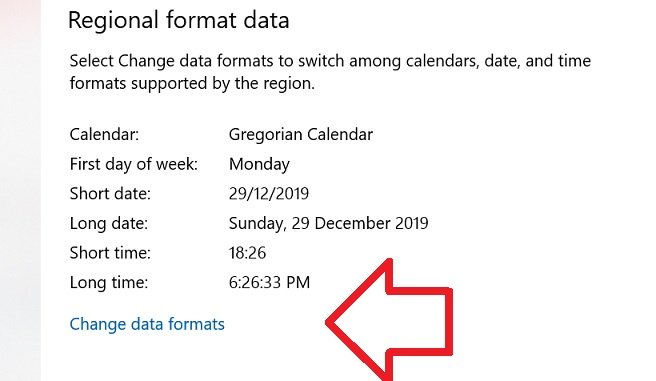
- Under ‘Short time’ select ‘9:40’

- Close the window
- Your time will now be in 24-hour format
There’s a issue with this it says to change the short time to 9:40 its really “09:40”
It seems to me that Microsoft should have made the example time they use something that actually shows the difference in time format, e.g. 9:40 PM and 21:40
They changed where it’s at, a little; the exact instructions did not work.
Change the time format does not work as you explained?
I thought the same as a lot of you. Why was this hidden so much?? I also think it’s kind of funny that this post was made in 2016 and updated last in 2019, but all the comments are from 2021.