The following steps detail how to change a Bitlocker recovery key in Windows 10.
This process does not decrypt the data on the hard drive – saving you A LOT of time.
NOTE: These instructions assume the BitLocker protected drive is the C:\ drive
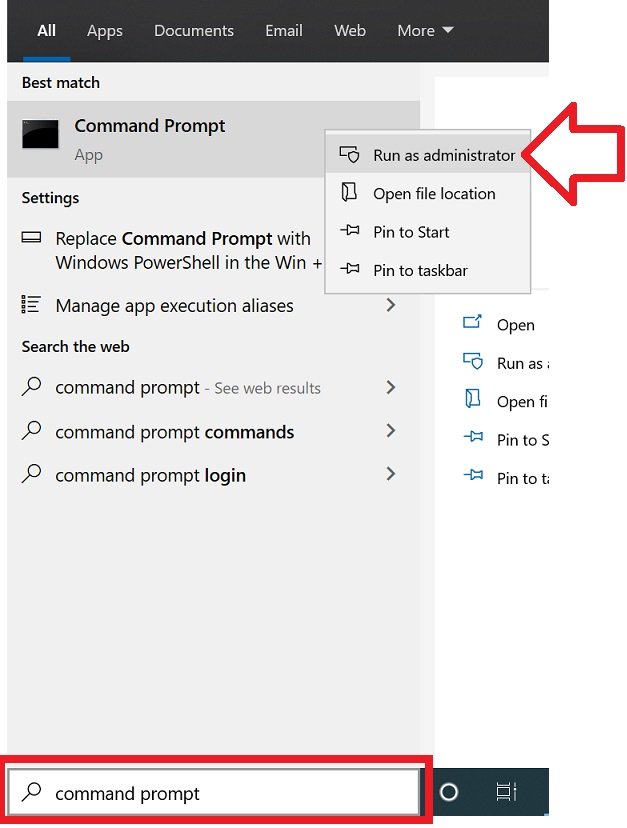
- In the taskbar, search for ‘Command Prompt’
- When it appears, right-click on it and select ‘Run as administrator’
- Run the following command:
-
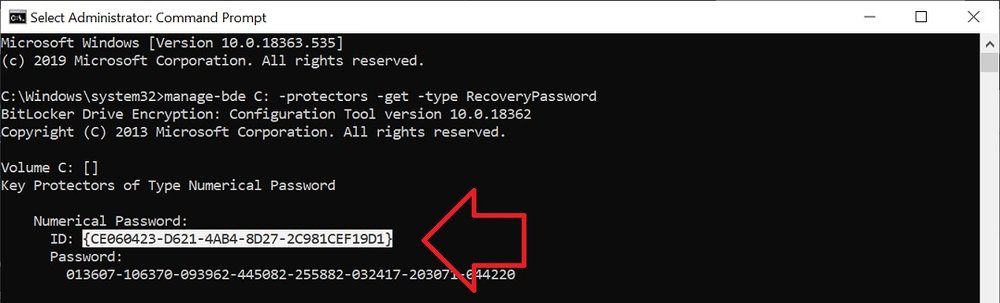
manage-bde C: -protectors -get -type RecoveryPassword
- Locate the protector you want to change (probably the only one displayed) and copy its ID field (including the curly braces)
- TIP: to copy you can select the text with your mouse then right-click to copy
- Run the following command, including the ID you copied in the previous step
-
manage-bde C: -protectors -delete -id [paste the ID you copied here]
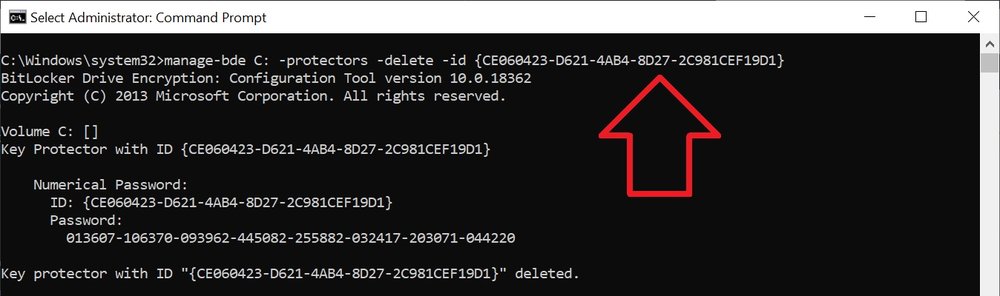
- The old recovery key has now been removed, you now need to create a new one
- Run the following command (leave last section blank to automatically generate a new key)
-
manage-bde C: -protectors -add -rp [optionally specify the new 48-digit password or enter nothing to have it randomly generated for you]
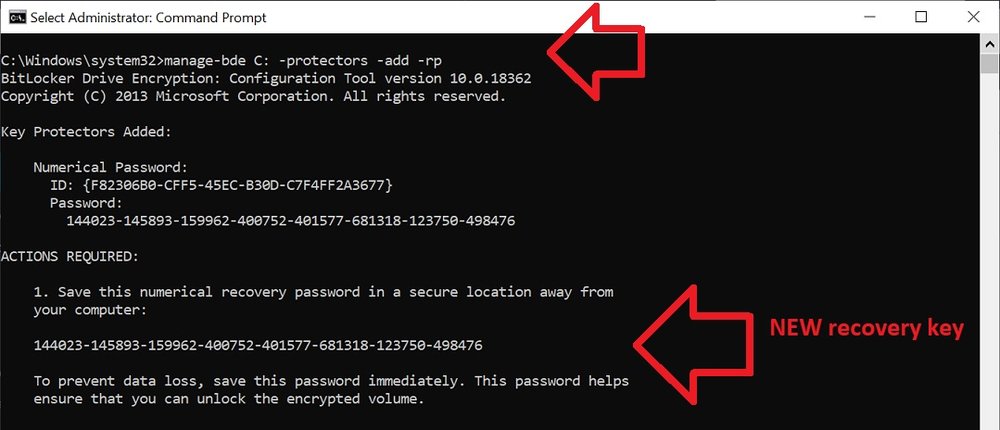
And you’re done! You’ve changed your recovery password.
Remember to save it somewhere safe!
Great instructions, thank you very much!
Because there’s no GUI to do this, I was worried I had to decrypt / encrypt.
Ignore all the comments about ‘volume locked’ – they’ve got a Bitlocker volume they’re trying to crack. As long as you can unlock your volume (e.g. enter the password or current recovery code) then you can change the recovery code this way.
these are performed in C directory and I am running in the X admin directory. How can we run these in C if C is locked?
Hi, even i am getting an error stating “The operation cannot be performed because the volume is locked”. Please help
Hello!
for me once I run all these command, I got this error
ERROR: The operation cannot be performed because the volume is locked.
Actually my issue, is that i forget the password for the D: drive while in this D drive there are a lots of my data.
how to reset/ to remove password , to be able to access my data.
How can I fix this????
Thank you in advance!
me too dear. please help
After Step 10 I get error message – The Operation cannot be performed because the volume if locked.
How do I resolve this