With such a heavy emphasis being placed on ‘green IT’ system administrators are now being asked to have all the company workstations shutdown at a set time.
This can be achieved through various methods including purchasing specalised products, but often there’s limited ability for end users to cancel or pause the shutdown. This adds a risk of a user still using the computer when the shutdown begins and loosing their work.
These HTA scripts are free and can be used to give a customised warning to users before their computers are automatically shutdown.
Shutdown HTA script – version 1
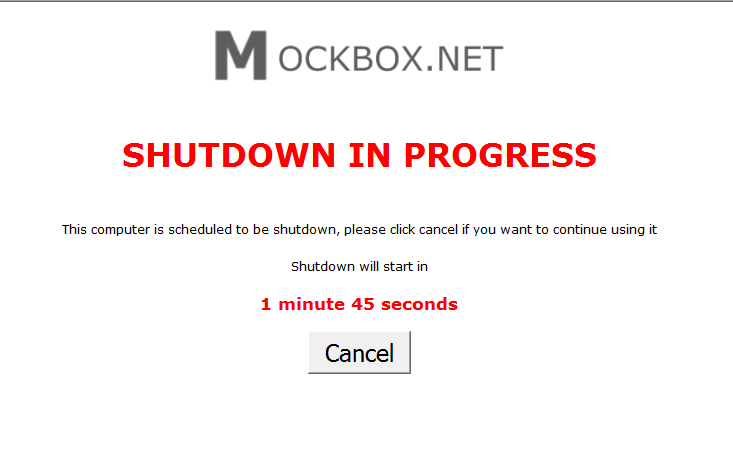
This version of Shutdown HTA features
- A large cancel button and a 60 second countdown before the shutdown begins.
- Improved countdown – now runs smoothly, says ‘minutes’ if there are 2 or more minutes remaining, says ‘minute’ if one minute remaining, and only says ‘seconds’ if in the last 60 second count down. A special thanks to Dave (see comments below) for helping improve the countdown.
- When ran the window is placed on top of all open windows
- When the 60 second count down sarts the window is placed on top of all open windows
- plays a system beep when the HTA is ran
- plays a system beep during the last 60 seconds of the count down
How to customise this script
- change ‘var mins = 2.1;’ to the amount of minutes the countdown is required for
- Change ‘<p><img src=”https://www.example.com/logo.png” /></p>’ to point to your company logo, or delete
- to remove the system beep, delete beep(); from line 131
- to have the system RESTART (rather than shutdown) change ‘objSystem.Win32Shutdown 5’ to ‘objSystem.Win32Shutdown 6’
How to implement this script
- Download using the link below.
- Customise the script as required.
- Schedule the script to run using the Windows Task Scheduler (or your other third party application).
- TIP: To implement this script you could have a copy on each workstation and have a local schedule call it, or you could create a server side script to psexec it on each workstation (calling the file from the server).
| Need help adding the HTA application to a Windows 7 Scheduled Task? See: Windows 7 – Run Scheduled Task Interactively |
Shutdown HTA script – version 2
Special thanks to Chris (see comments below) for this version of the shutdown HTA script.
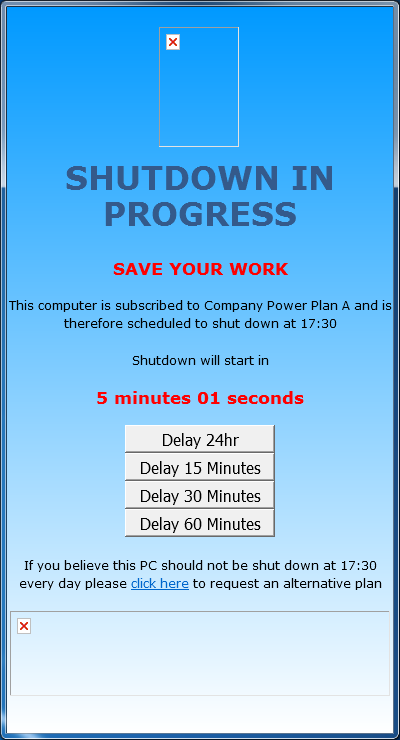
This version does all above with the addition of being able to:
- Delay for 24 hours
- Delay for 15 minutes
- Delay for 30 minutes
- Delay for 60 minutes
As well as a different look and feel to the GUI.
I got around this with two scheduled tasks.1st is a computer policy, that is run, action of this is cscript.exe running a vbscript that checks if a user is logged in, if no, then shutdown immediately, if yes, then the script simply exits. 2nd is a user policy,runs 30 seconds later with a similar script except if yes, this launches the shutdown hta which as a user scheduled task the end user gets to see. Happy to post details if requested.
Hey, I have the same issue 🙁 Did you managed to find a solution?
you just need a little applet, its name is “Poweroff”, you can search it or get it here:
Powerful customizable shutdown utility
appnee.com/poweroff/
With eference the last link, you could always get the HTA to call a batch file or convert the bacth fiel to an exe (hiddden) so the DOS window doesn’t appear. Set objShell = CreateObject(“WScript.Shell”)
objShell.Run(“\scriptsPowerManagementhibernate.bat”)
Sone usefull references here. http://superuser.com/questions/39584/what-is-the-command-to-use-to-put-your-computer-to-sleep-not-hibernate