This guide shows how to allow Windows 11 to connect to SMB shares that use guest access or do not require a valid username and password.
On this pageJump to a section
Command
Set-SmbClientConfiguration -RequireSecuritySignature $false
Set-SmbClientConfiguration -EnableInsecureGuestLogons $true
What You Need
- A Windows 11 computer.
- An account with Administrator access.
- An SMB share that allows guest access or does not require a valid account.
Steps
- Right-click Start.
- Click Terminal (Admin) or Windows PowerShell (Admin).
- Click Yes if the User Account Control prompt appears.
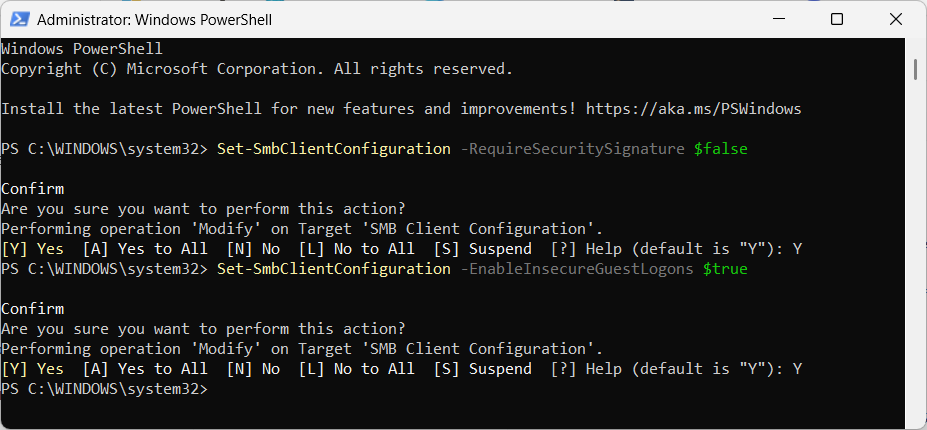
- Run this command:
Set-SmbClientConfiguration -RequireSecuritySignature $false
- If PowerShell asks you to confirm the change, type
Y, then press Enter. - Run this command:
Set-SmbClientConfiguration -EnableInsecureGuestLogons $true
- If PowerShell asks you to confirm the change, type
Y, then press Enter. - Close Terminal or Windows PowerShell.
- Open File Explorer.
- Enter the SMB path in the address bar.
For example:
\\SERVER-NAME\SHARE-NAME- If Windows still asks for a username and password, enter any value in the Username field.
Example:
x- Enter any value in the Password field if Windows requires one, then continue.
Check the Settings
Run this command in Terminal (Admin) or Windows PowerShell (Admin):
Get-SmbClientConfiguration | Select-Object RequireSecuritySignature, EnableInsecureGuestLogons
The expected result is:
RequireSecuritySignature EnableInsecureGuestLogons
------------------------ --------------------------
False True
What the Commands Do
Set-SmbClientConfiguration -RequireSecuritySignature $falsestops Windows 11 from requiring SMB signing for outbound SMB connections.Set-SmbClientConfiguration -EnableInsecureGuestLogons $trueallows the Windows 11 SMB client to use insecure guest logons.- These settings affect the Windows 11 computer you run the commands on. They do not change the SMB server.
Caution
- Only use this on a trusted private network.
- Guest SMB access is less secure than using named accounts and passwords.
- Use a proper SMB username and password where possible.
- Do not enable SMB1 unless the device specifically requires it and you understand the security risk.
Troubleshooting
- If access still fails, restart the Windows 11 computer and try again.
- If Windows keeps using old credentials, remove the saved entry from Credential Manager and reconnect.
- If the SMB server supports user accounts, create a valid SMB user instead of relying on guest access.