The following steps show how to create a silent install package of Firefox, complete with custom configuration.
Note: these settings will be applied for all new and existing users and can not be changed by users.
It does the following tasks:
- Install Firefox silently, without Firefox being the default
- Disables the ‘Automatically check for updates’ option
- Disables the import wizard when Firefox first loads
- Disables the ‘Always check to see if Firefox is the default browser on startup’ option
- Sets homepage to ‘http://www.google.com’ (you can change this in your configuration)
- Disables the ‘know your rights’ button from displaying on first run
- Disables the request to send performance data from displaying
How to customise and deploy (silent install) Firefox
- Create a temporary working folder for saving the files into (for example, create C:\TEMP\Firefox)
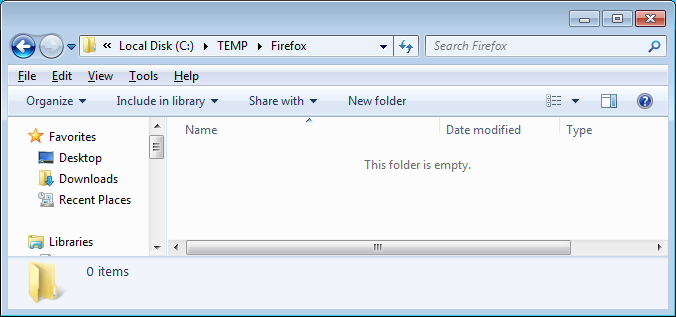
- Download the latest install file at http://www.mozilla.org/en-US/firefox/all . Save to C:\TEMP\Firefox
- Create a new text file called ‘override.ini’ and copy in the following information:
[XRE]
EnableProfileMigrator=false
- Create a new text file called ‘local-settings.js’ and copy in the folling information:
pref("general.config.obscure_value", 0);
pref("general.config.filename", "mozilla.cfg");
- Create a new text file called ‘mozilla.cfg’ and copy in the following information:
//Firefox Default Settings
// set Firefox Default homepage
pref("browser.startup.homepage","http://www.google.com");
// disable default browser check
pref("browser.shell.checkDefaultBrowser", false);
pref("browser.startup.homepage_override.mstone", "ignore");
// disable application updates
pref("app.update.enabled", false)
// disables the 'know your rights' button from displaying on first run
pref("browser.rights.3.shown", true);
// disables the request to send performance data from displaying
pref("toolkit.telemetry.prompted", 2);
pref("toolkit.telemetry.rejected", true);
- Create a new text file called ‘install.cmd’ and copy in the following information
@echo off
REM==========================================
REM Install FireFox 106.0.1
REM==========================================
REM Date : 23 October 2022
REM Author : www.itsupportguides.com
REM .
REM Script Details:
REM --------------
REM This script will:
REM + silently install or upgrade Firefox WITHOUT Firefox being the default browser
REM + Disables the 'Automatically check for updates' option
REM + Disables the 'Always check to see if Firefox is the default browser on startup' option
REM + Deletes desktop icon
REM + Disables the Import Wizard
REM + Works for Windows 7 /8 32-bit and 64-bit
REM .
REM===========================================
echo Installing Firefox - Please Wait.
echo Window will close after install is complete
REM Installing Firefox
"%~dp0Firefox Setup 106.0.1.exe" -ms
REM Install 64-bit customisations
if exist "%ProgramFiles(x86)%\Mozilla Firefox\" copy /Y "%~dp0override.ini" "%ProgramFiles(x86)%\Mozilla Firefox\browser\"
if exist "%ProgramFiles(x86)%\Mozilla Firefox\" copy /Y "%~dp0mozilla.cfg" "%ProgramFiles(x86)%\Mozilla Firefox\"
if exist "%ProgramFiles(x86)%\Mozilla Firefox\" copy /Y "%~dp0local-settings.js" "%ProgramFiles(x86)%\Mozilla Firefox\defaults\pref"
REM Removes Firefox Desktop Icon - Windows 7 / 8
if exist "%public%\Desktop\Mozilla Firefox.lnk" del "%public%\Desktop\Mozilla Firefox.lnk"
- Copy the Firefox install file, override.ini, mozilla.cfg, local-settings.js and install.cmd to your software package share
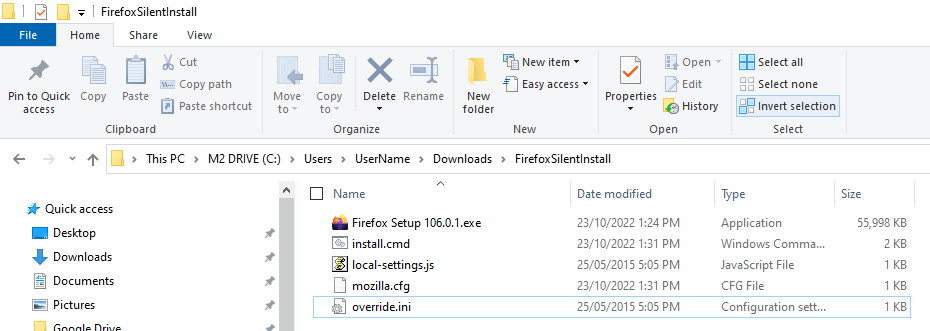
- You can now create your SCCM package or deploy the software by using install.cmd.
For more information on creating SCCM packages see SCCM – How to Distribute Software Packages.
More Firefox configurations:
Please refer to the following articles for some more common customisations:
Hi Ramy –
You can customise ‘mozilla.cfg’ depending on your requirements.
If you don’t need to specify a proxy server, simply remove all lines under ‘//set proxy server settings’
Hello,
First off the was a great help for me. I just wanted to know is there a way to configure for no proxy at all ? thanks
[quote name=”Aaron”]When using the files above, I get the following message when launching Firefox:
“Failed to read the configuration file. Please contact your system administrator.”
Specs:
Win 7 32 Enterprise
UAC on[/quote]
UPDATE: I’ve since performed the ROT13 switch on the mozilla.txt (making a mozilla.cfg) that I read somewhere else. This allowed me to open Firefox, however, my preferences did not take.
I then thought I could remove the line pref(“general.config.obscure_value”, 0); as the other site said this was needed so that ROT13 did not need to be performed, however, removing that, gave me the above error again.
When using the files above, I get the following message when launching Firefox:
“Failed to read the configuration file. Please contact your system administrator.”
Specs:
Win 7 32 Enterprise
UAC on
Hi Mike –
Thanks for pointing out the error in install.cmd. It’s been updated.
The prefs.js method still for all settings [u]except [/u]the home page (“browser.startup.homepage”).
You can choose to use prefs.js, however if you try to set a homepage it won’t work and will result in a blank page being loaded as the homepage.
You can also use a combination of both prefs.js and mozilla.cfg if you want to work around this issue.
To simplify things I have adopted using mozilla.cfg to do the configuration.
But is not my prefered method, once the home page issue is resolved I will be going back to using prefs.js.