Problem
After installing IrfanView image thumbnails are not displayed in File Explorer (also known as My Computer, Computer or Windows Explorer).
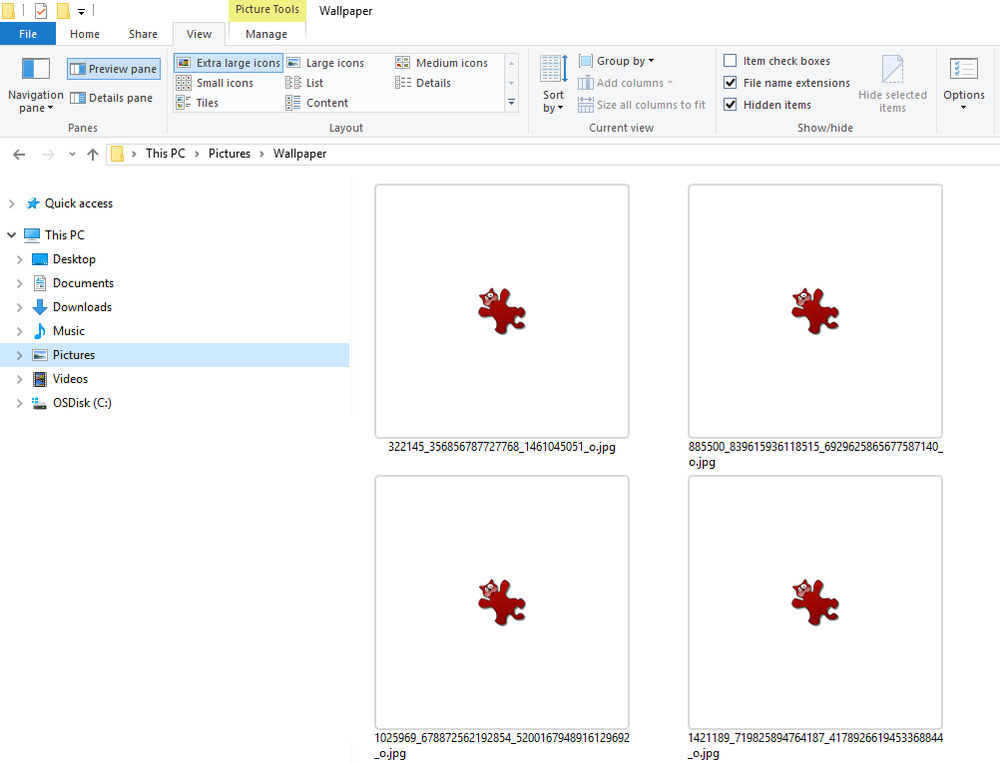
Solution
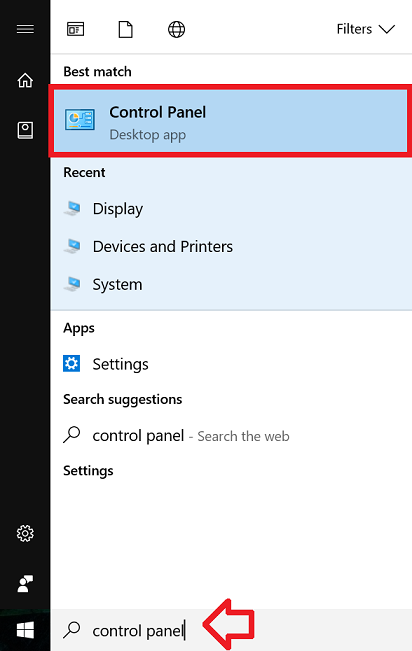
- In the taskbar, type “control panel” and click on ‘Control Panel’ when it appears in the search results
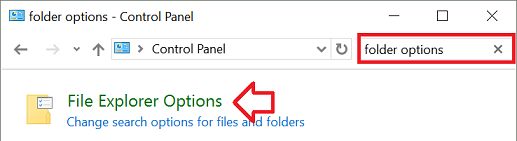
- In the “Search Control Panel” box at the top right type “folder options”
- Click on ‘File Explorer Options’ when it appears in the window
- Open the ‘View’ tab
- Un-tick ‘Always show icons, never thumbnails’
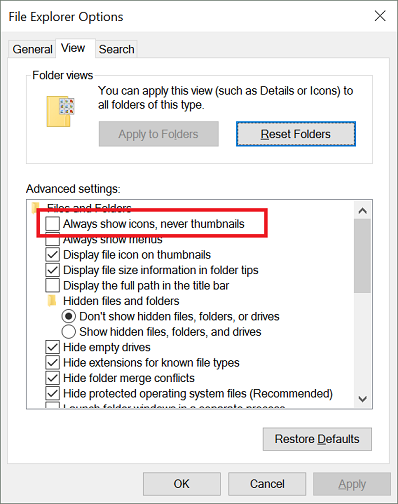
- Click ‘OK’ to save the changes.
- Thumbnails will now be displayed in Windows Explorer.
same problem for me too – was already unchecked and still not displaying icons. If I copy and paste the entire file as a new folder sometimes it then shows the icons in the folder. Really annoying though.
This still doesn’t work
Worked for me. I just had to make sure for each folder I was viewing was set to display icons and not a list in the explorer view tab.
The option is already unchecked yet there are no thumbnails 🙁
Doesn’t work. this also was posted in 2017