Windows 10 comes complete with a number of energy efficient options, however some of these leave may leave your screen brightness uncomfortably dark.
Here’s a few ways to make the screen brighter.
Option 1: Disable automatic brightness adjustments
Note: for computers with a light sensor (typically laptop computers).
See: Windows 10 – How to disable automatic brightness adjustments
Option 2: Adjust screen brightness
Note: not all monitors support this feature – this option may not be available for you.
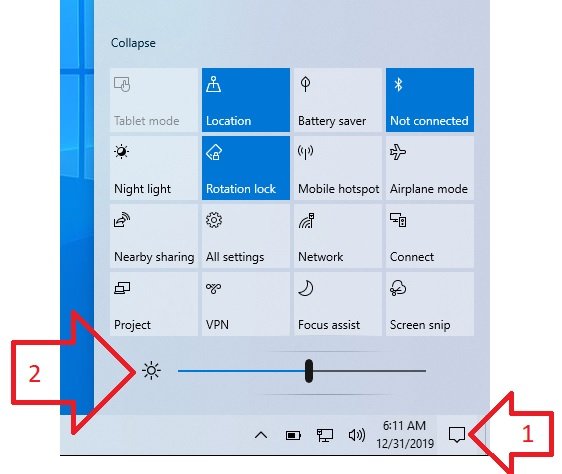
- Click on the Notifications icon at the bottom right of the screen
- You may have to click the ‘Expand’ link to see all the options available
- Use the brightness slider to select the desired brightness
Option 3: Use the monitors brightness settings
If neither of these options helped, you may need to adjust the brightness of your monitor using the adjustment options on the monitor.
If you’re using a laptop computer, these are usually located on the keyboard under the F buttons (e.g. F1). You should seen an icon on the button which represents the screen brightness being more or less. You may also need to use the FN (function) button on the keyboard to use these buttons.
If you’re using a desktop computer, the buttons are normally located to the side of the monitor.
Help – none of these options helped !
If none of these options helped and your screen is extremely dark – it’s possible you have a hardware fault. For example, the backlight on the screen is not working.
To confirm this, restart your computer while holding the SHIFT key (Windows -> Power -> HOLD SHIFT and click Restart). When the computer starts to boot you should see some on screen messages. If these are also extremely dark it’s likely you have a hardware fault.
Option 3 worked for me. YAY!
This is how I fixed mine– Go to CONTROL PANEL- Go to DISPLAY- Then ADJUST RESOLUTION- Click ADVANCED SETTINGS- Click PROPERTIES- Click DRIVER TAB- ..After you Click UPDATE DRIVER, it will ask you “how you want to search for driver software;” Cick “Browse My Computer For Software” – Then next window choose- “Let Me Pick From A List Of Device Drivers On My Computer;” you’ll see compatible drivers, look for “MICROSOFT BASIC DISPLAY ADAPTER” – Then Click NEXT.
Then my computer got bright again. 🙂
my computer turns dark every so often… I dont have a clue what to do…
Try Function + F8 this will turn off concealed mode if you accidnetly turned it on.
The power plan used to work but no longer available in w10 recent updates.