Windows 10 comes with a range of new applications for using your files, one of these is ‘Photos’ which replaces Windows Photo Viewer (also known as Windows Picture and Fax Viewer) from Windows 7 and 8.
On this pageJump to a section
If you preferred the old Windows Photo Viewer the good news is you can re-enable it in Windows 10.
There are two ways to bring back the Windows Photo Viewer –
- Uninstall the Photos app – this will automatically re-enable the Windows Photo Viewer application and set it to handle all your image types – see Windows 10 – How to uninstall Photos app
- Install a registry modification and manually assign each image type to open in the Windows Photo Viewer application – see steps below.
How to restore Windows Photo Viewer manually
Step 1 – Install registry modification
Download: Windows10-RestorePhotoViewer.zip
- Download Windows10-RestorePhotoViewer.zip
- Open ZIP file
- Run Windows10-RestorePhotoViewer.reg
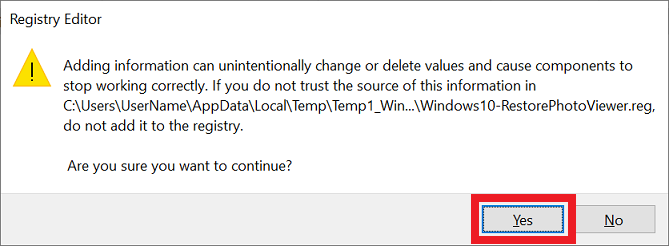
- When prompted, choose ‘Yes’ to import registry setting
Step 2 – Set Windows Picture and Fax Viewer as default app
Once the registry modification is installed you can choose Windows Photo Viewer as the default profile for images.
- Make sure you have done step 1 above
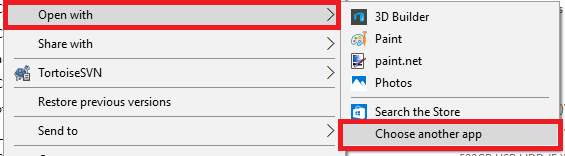
- Right click on an image, choose ‘Open with’ then ‘Choose another app’
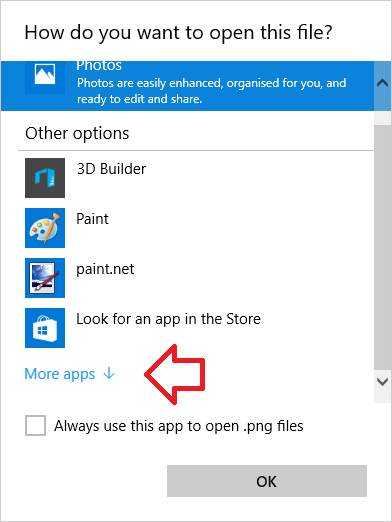
- Scroll to the bottom of the list, click on ‘More apps’
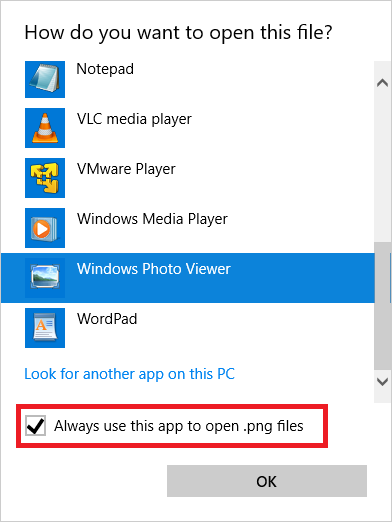
- From the list, select Windows Photo viewer’
- Tick ‘Always use this app to open .png files’ and click ‘OK’
- PNG files will now open in Windows Photo Viewer – you will need to repeat this process for other image file types as you come across this (e.g. jpg, jpeg, tiff, gif).
Reference: http://www.tenforums.com/software-apps/8930-windows-photo-viewer-gone-2.html#post290818
I recently had a new SSD installed and had Windows 10 Pro installed that has this new awful windows photo app.
Will your method 2 (install registry modification) work for me to get the old photo viewer back?
How safe it this? New Windows 10 64-bit install here.
It’s perfectly safe – it just adds the option to use a program that’s already on your computer. You’re not installing any third-party software or making changes that could cause calm. I prefer this option, but if you’re concerned about doing registry changes try the other method – https://www.itsupportguides.com/knowledge-base/windows-10/windows-10-how-to-uninstall-photos-app//
Alright, I ran the registry entry and it worked perfectly. My apologies and thank you.