With such a heavy emphasis being placed on ‘green IT’ system administrators are now being asked to have all the company workstations shutdown at a set time.
On this pageJump to a section
This can be achieved through various methods including purchasing specalised products, but often there’s limited ability for end users to cancel or pause the shutdown. This adds a risk of a user still using the computer when the shutdown begins and loosing their work.
These HTA scripts are free and can be used to give a customised warning to users before their computers are automatically shutdown.
Shutdown HTA script – version 1
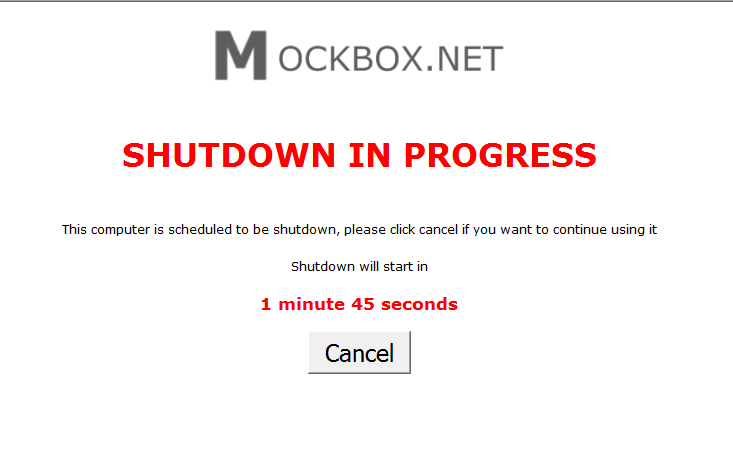
This version of Shutdown HTA features
- A large cancel button and a 60 second countdown before the shutdown begins.
- Improved countdown – now runs smoothly, says ‘minutes’ if there are 2 or more minutes remaining, says ‘minute’ if one minute remaining, and only says ‘seconds’ if in the last 60 second count down. A special thanks to Dave (see comments below) for helping improve the countdown.
- When ran the window is placed on top of all open windows
- When the 60 second count down sarts the window is placed on top of all open windows
- plays a system beep when the HTA is ran
- plays a system beep during the last 60 seconds of the count down
How to customise this script
- change ‘var mins = 2.1;’ to the amount of minutes the countdown is required for
- Change ‘<p><img src=”https://www.example.com/logo.png” /></p>’ to point to your company logo, or delete
- to remove the system beep, delete beep(); from line 131
- to have the system RESTART (rather than shutdown) change ‘objSystem.Win32Shutdown 5’ to ‘objSystem.Win32Shutdown 6’
How to implement this script
- Download using the link below.
- Customise the script as required.
- Schedule the script to run using the Windows Task Scheduler (or your other third party application).
- TIP: To implement this script you could have a copy on each workstation and have a local schedule call it, or you could create a server side script to psexec it on each workstation (calling the file from the server).
| Need help adding the HTA application to a Windows 7 Scheduled Task? See: Windows 7 – Run Scheduled Task Interactively |
Shutdown HTA script – version 2
Special thanks to Chris (see comments below) for this version of the shutdown HTA script.
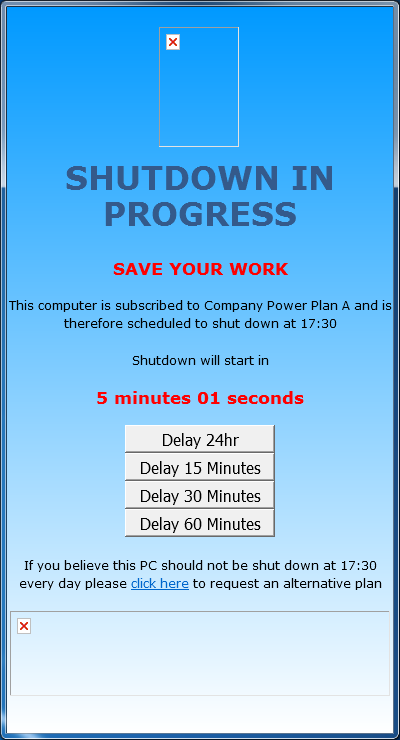
This version does all above with the addition of being able to:
- Delay for 24 hours
- Delay for 15 minutes
- Delay for 30 minutes
- Delay for 60 minutes
As well as a different look and feel to the GUI.
Hey Melwin –
The last time I needed to do that this process worked for me – http://www.mockbox.net/windows-7-tips/473-windows-7-run-scheduled-task-interactively
Hopefully it works for you too.
I am trying to run this program using task scheduler and it run fine. But how to make this window appear on top of other windows?
I’m looking at implementing this shutdown script, but when the countdown timer reaches 00 seconds I get the following error
—————————————-
An error has occurred in the script on this page
Line: 1
Char: 1
Error: Could not complete the operation due to error 800a01f9
Code: 0
URL: C:WindowsLocalShutdownShutdownWithDelay.hta
Do you want to continue running scripts on this page?
—————————————-
Any advice would be greatly appreciated.
Cheers
Ben
Somehow the screen doesn’t become on top of all.
I’ve a planned task to activate it at a several time, but it doesn’t pop up when playing a game.
Any idea to fix this?
Hello
I added this pice of code that deactivates atl+F4, so that the user cant close the app.
function document.onkeydown(){
var alt=window.event.altKey;
if (event.keyCode==116 || event.keyCode==27 || alt && event.keyCode==115) {
event.keyCode=0;
event.cancelBubble=true;
return false;
}
}