Problem:
When attempting to open a folder in Windows Explorer, the folder always opens in a new window.
On this pageJump to a section
Solution:
Follow each of these solutions until the issue is resolved.
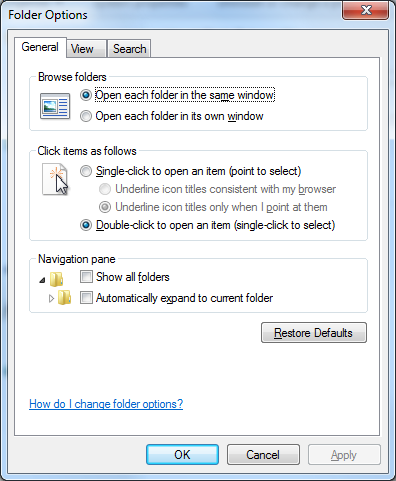
Solution 1: Check ‘Open each folder in the same window’ setting is enabled:
- With Windows Explorer (also known as ‘My Computer’ or ‘Computer’) open, select the ‘Organise’ button then ‘Folder and search options’

- Check that ‘Open each folder in the same window’ is selected. Click ‘OK’ to save the changes
Solution 2: Use regsvr32 to re-register two DLL’s
- Save the following script into notepad and save as ‘FixWindowsExplorer.cmd’
@echo off

:: 32 bit and 64 bit
IF EXIST "%SystemRoot%\System32\actxprxy.dll" "%SystemRoot%\System32\regsvr32.exe" "%SystemRoot%\System32\actxprxy.dll"
IF EXIST "%ProgramFiles%\Internet Explorer\ieproxy.dll" "%SystemRoot%\System32\regsvr32.exe" "%ProgramFiles%\Internet Explorer\ieproxy.dll"

:: 64 bit only (32bit on 64 bit)
IF EXIST "%WinDir%\SysWOW64\actxprxy.dll" "%WinDir%\SysWOW64\regsvr32.exe" "%WinDir%\SysWOW64\actxprxy.dll"
IF EXIST "%ProgramFiles(x86)%\Internet Explorer\ieproxy.dll" "%WinDir%\SysWOW64\regsvr32.exe" "%ProgramFiles(x86)%\Internet Explorer\ieproxy.dll"
- Run ‘FixWindowsExplorer.cmd’ as administrator.

Solution 3: Repair Windows system files
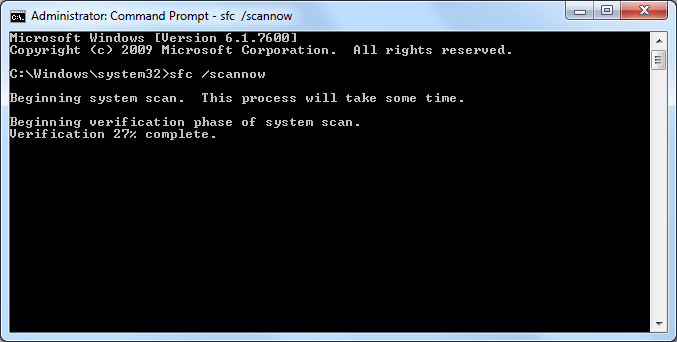
- Open ‘Command Prompt’ as administrator
- Type in sfc /scannow and hit Enter
Method #3 works guys and it is the most convenient windows will gonna wvwething to you
Method #3 worked, basically my fault because I cleaned too much, useful tip!
i trying everything from last one week finely method #2 worked for me like a charm, thank you from Pakistan
yes! method 2 work
thank you
Method 1 didn’t work. Method 2 did! Thank you so much. This has been bugging me for ages!!