A network place is a shortcut to a website, FTP site or other network location such as a SharePoint document library.
Once created the network place will be available from ‘Computer’ or the ‘save as’ dialogue box – allowing you quick access to your favourite network places.
The following steps can be used to add a network place when running Windows 7.
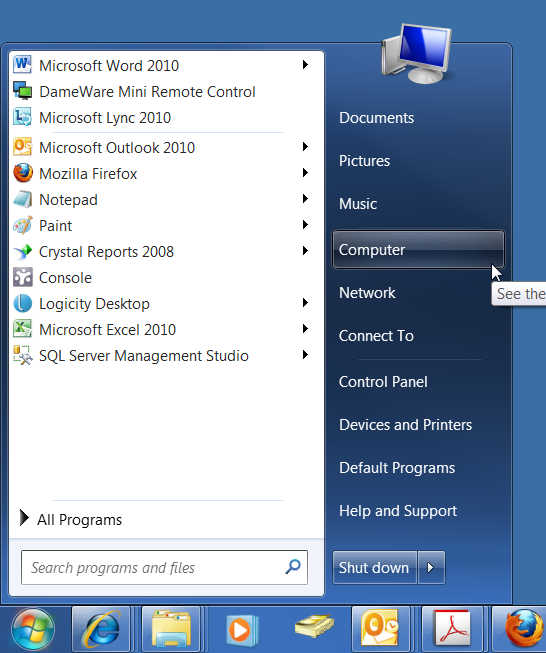
- Click on the Windows Start button in the bottom left hand corner of the screen
- Click on Computer
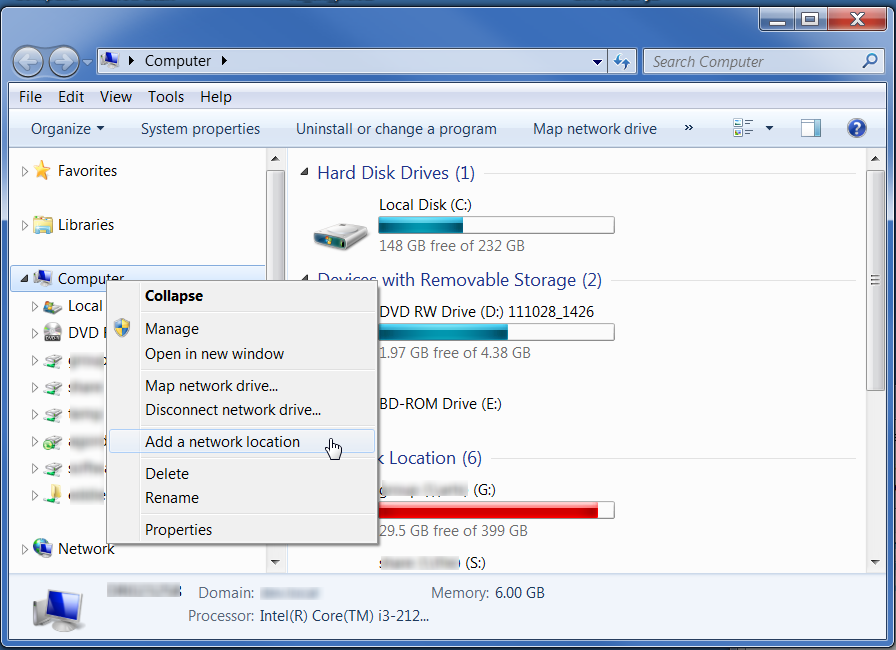
- Right-click on the ‘Computer’ icon on the left hand side of the window
- From the list select ‘Add a network location’
-
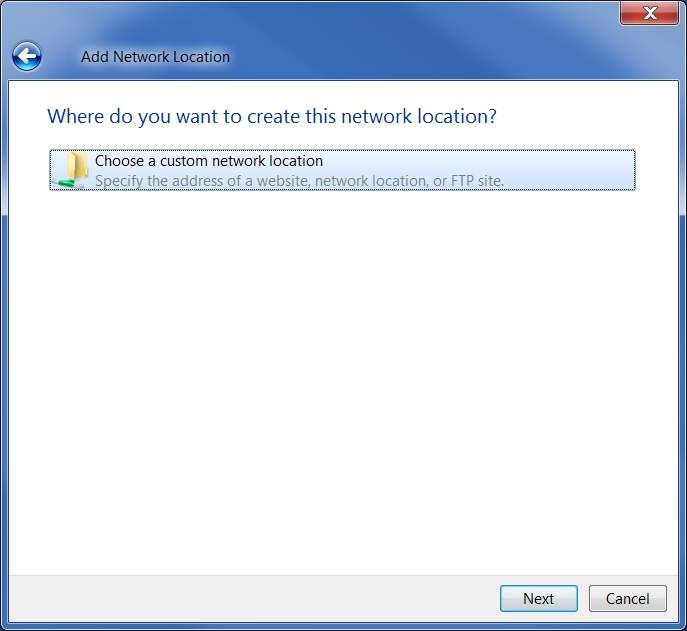
- The “Add Network Location” wizard will open, click ‘Next’
- Ensure that ‘Choose a custom network location’ is selected and then click ‘Next’
- Enter the address of the network folder or FTP site you wish to add into the ‘Internet or network address’ field
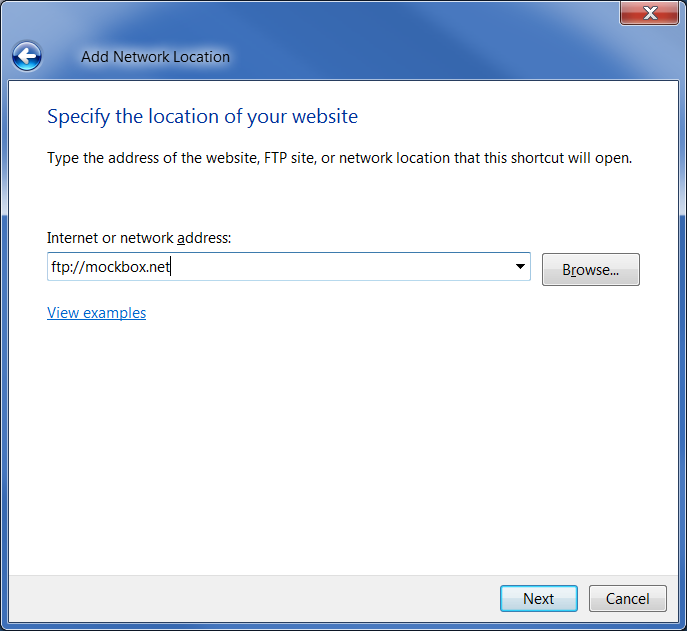
- Click ‘Next’
- IF YOU ARE ADDING AN FTP SITE: you will be prompted for the User Name, enter as required then click ‘Next’
- Type a name for the network place
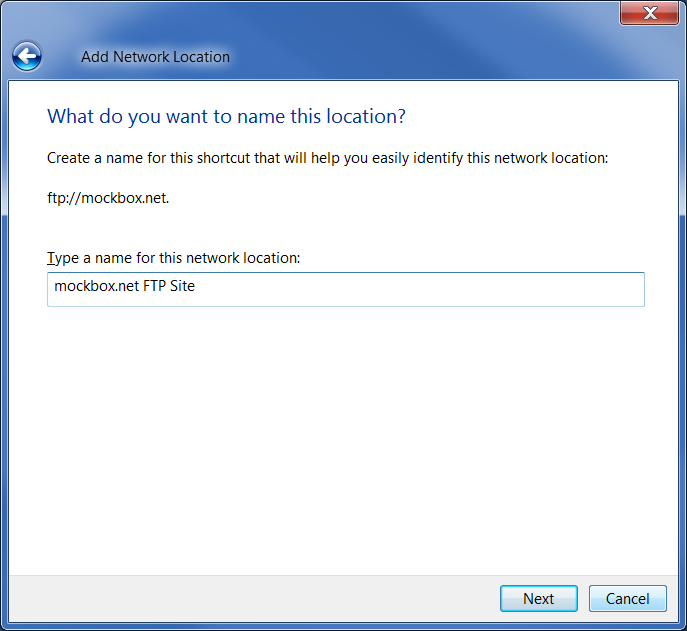
- Click Finish to complete
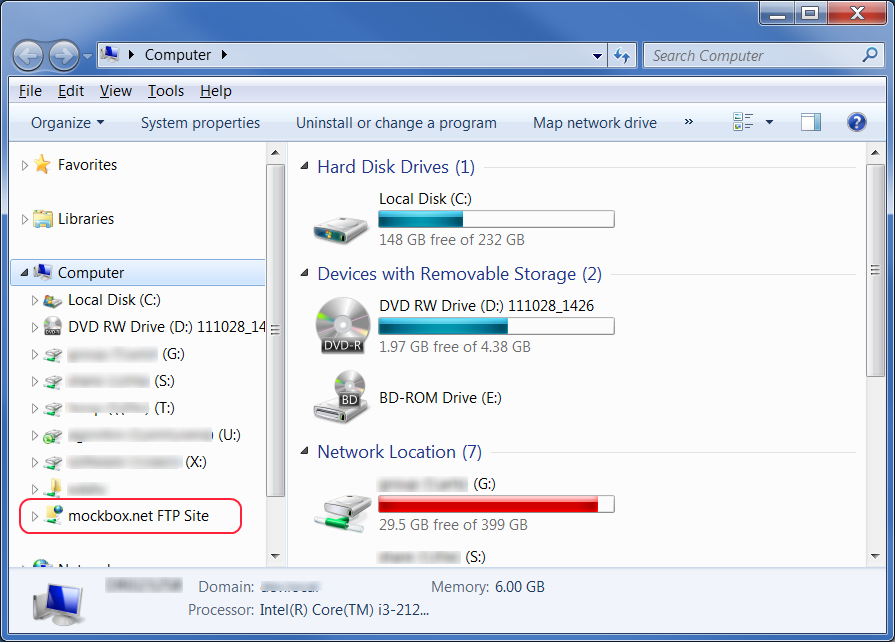
- The new network place can be accessed from the ‘Computer’ window.
Hai Ben,
with International Freephone Service selected, still have space added at the most right position of the phone number, is there any better solution?
I like the automatic spaces, () and – in Outlook to help clarify the phone number, but it causes problems when syncing with my Nokia phone. The main problem is duplicated phone numbers, one with the extra punctuation and one without. So I have decided to enter all my numbers without punctuation. Your solution works, but on international numbers Outlook still adds a space after the country code, eg. +1 9999999999. I think best is to select “International Freephone Service” for the Country in [b]Phone and Modem Options[/b]. This forces Outlook to not reformat anything.
Awesome! Thanks for this great tip.
Thanks for this – very useful! I’ve been trying to change that formatting for ages. I most places the area code is no longer optional.