Problem
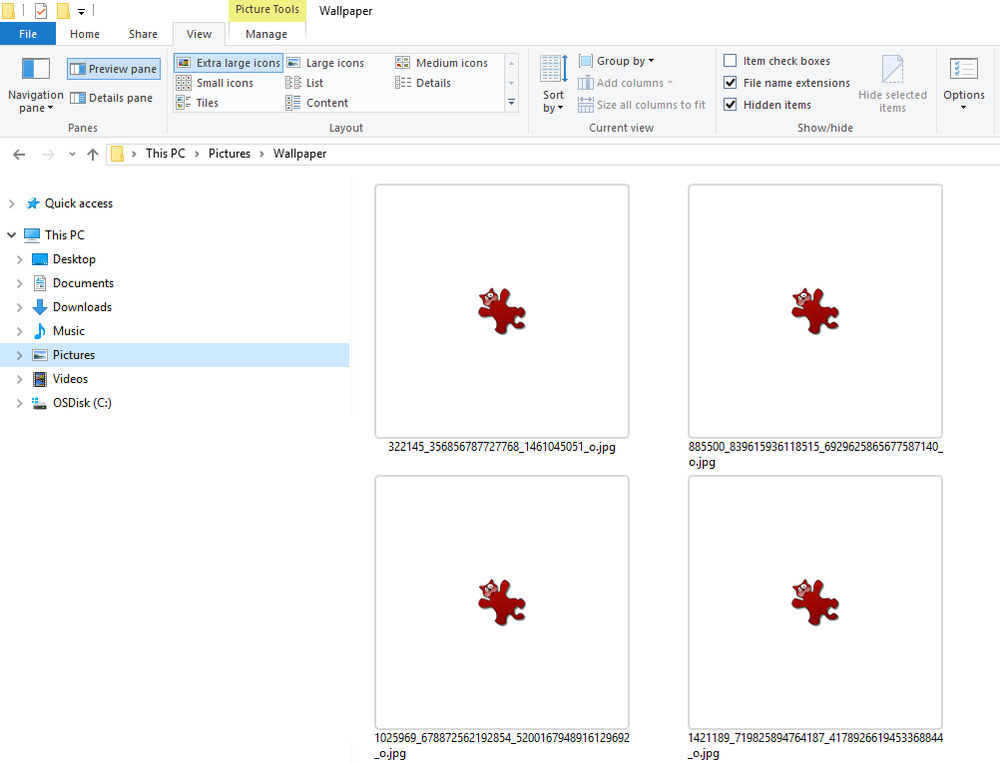
After installing IrfanView image thumbnails are not displayed in File Explorer (also known as My Computer, Computer or Windows Explorer).
Solution
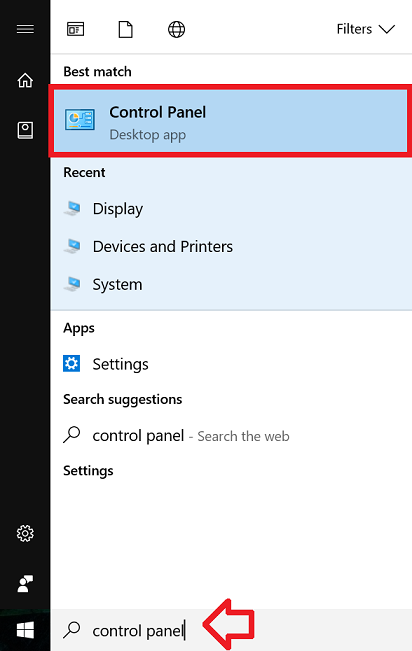
- In the taskbar, type “control panel” and click on ‘Control Panel’ when it appears in the search results
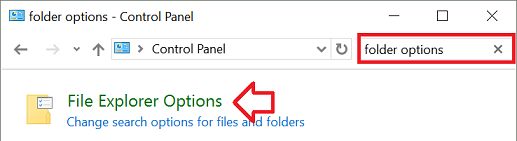
- In the “Search Control Panel” box at the top right type “folder options”
- Click on ‘File Explorer Options’ when it appears in the window
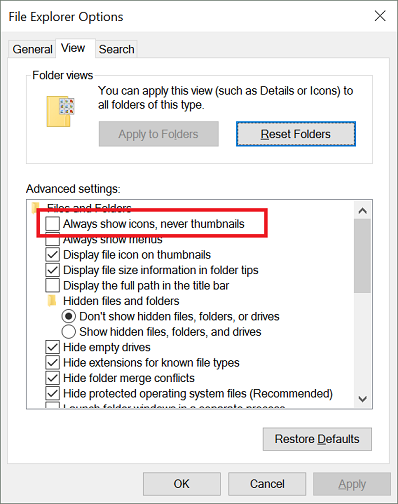
- Open the ‘View’ tab
- Un-tick ‘Always show icons, never thumbnails’
- Click ‘OK’ to save the changes.
- Thumbnails will now be displayed in Windows Explorer.
this is not solution
That checkbox was already unticked for me and the thumbnails still do not display. I tried toggling it on and off several times, but they’re still not showing up….??
Same here, Windows 11 has changed something in a very stupid way. And I depend on seeing the thumbnail to find the picture I’m looking for quickly!
That did it!
Thank you!
Thanks for this tip! Made my day!
This problem is FOREVER and it is tiresome af.
AMEN! What a PAIN IN THE ASS!